How to Use Locale Presets
StringLane ships built-in cultural context for 50 locales and applies it to AI translation automatically. What each preset covers, which locales have one, and how to override it.
Last updated
A locale preset is a short block of translation guidance that StringLane sends to the AI whenever it translates into that locale. Register, punctuation, script conventions, and the one mistake models most often make in that language.
You do not have to switch them on. If a locale has a preset and you have not written your own context for it, the preset is used automatically.
A preset is not a language picker. Adding a locale means typing its BCP 47 code — see How to Add a New Locale. Presets only affect what the AI is told once the locale exists.
What a preset actually says#
Each one is two to four directive sentences. The German preset:
Use formal "Sie" for all UI text. Capitalise all nouns. Use German quotation marks „..." (opening low, closing high) — not English "...". Decimal separator is a comma, thousands separator is a period. Avoid Anglicisms where a natural German equivalent exists (e.g. "herunterladen" not "downloaden").
Japanese:
Use です/ます (desu/masu) polite form for all UI text. Use full-width Japanese punctuation (。、!?「」) — not ASCII equivalents. No spaces are used between Japanese words. Avoid kanji above JLPT N2 level unless domain-specific. Katakana is appropriate for loanwords — do not romanise them.
Turkish, where the note is a genuine bug-preventer:
Use informal "sen" for most modern UI (formal "siz" only in banking/government). Critical: Turkish has a dotless ı (U+0131) and a dotted İ (U+0130) — incorrect casing (e.g. i→I instead of i→İ) causes errors. Decimal separator is a comma, thousands separator is a period.
Every preset covers some combination of formality register, punctuation and typography, script conventions, and one common pitfall.
Which locales have one#
Fifty locales ship with a preset:
af ar bg bn ca cs da de el es et fa fi fr gu he hi hr hu id it ja kn ko lt lv mr ms nl no pl pt pt-BR ro ru sk sl sr sv sw ta te th tl tr uk ur vi zh-Hans zh-Hant
Matching is exact on the locale code. pt and pt-BR are separate presets because Brazilian and European Portuguese differ enough to matter; zh-Hans and zh-Hant likewise. A locale not on this list — fr-CA, es-MX, zh on its own — simply has no preset, and the AI works from your product context alone. Write your own for those.
Seeing which preset is in play#
- Open Settings (⌘,)
- Choose Project → Locale Context
- Pick a locale from the list on the left
If a built-in preset is being used, a panel appears below the text area: "AI is using the built-in preset for de", with the preset text beneath it. Show more expands it in full.
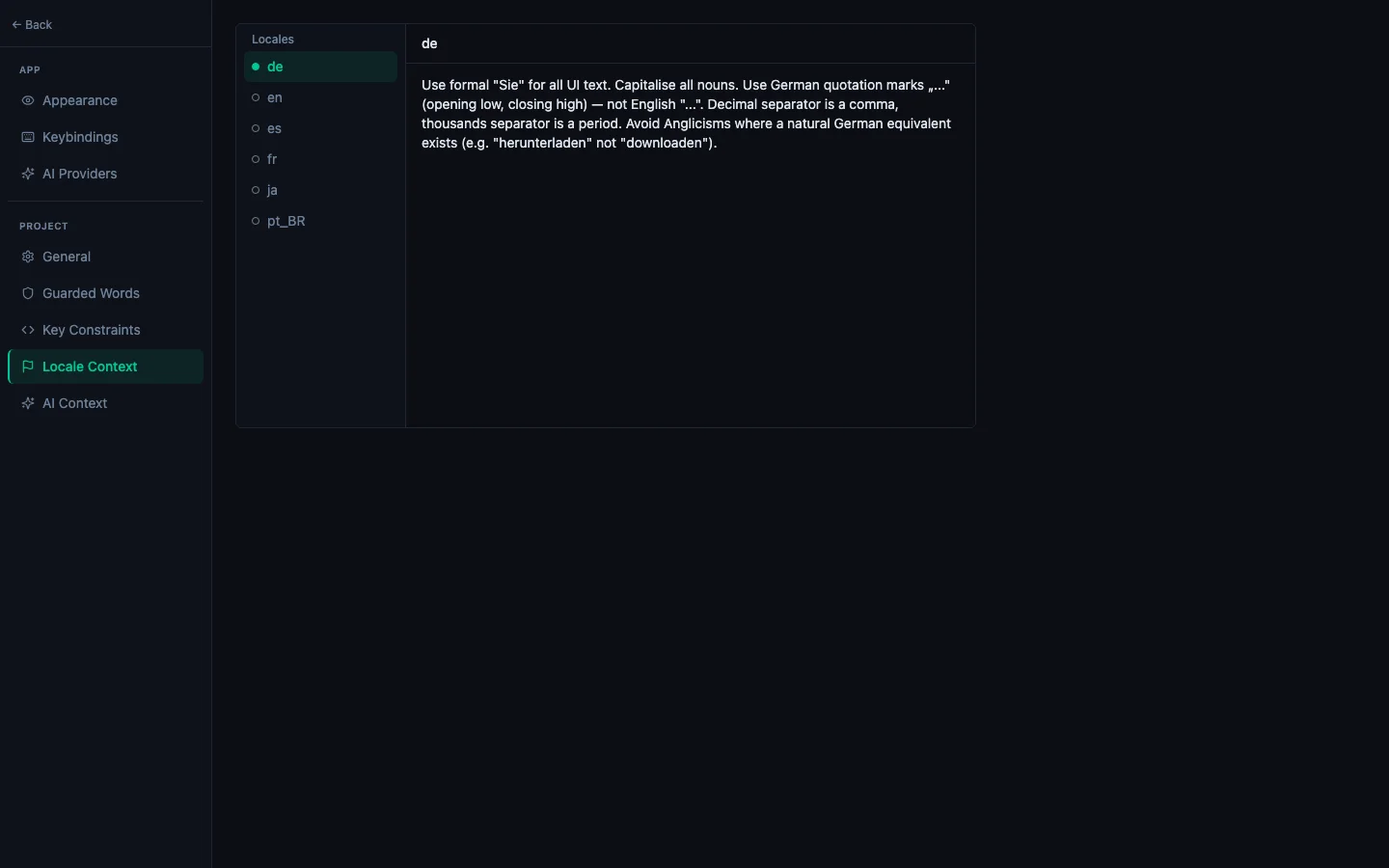
The dot beside each locale in that list tells you the state at a glance: filled means you have written your own context, hollow means the preset (or nothing) is in effect.
Presets do not apply to your base locale — there is nothing to translate into it.
Overriding a preset#
Click Customize. The preset text is copied into the text area, where you can edit it. From that point it is your context: the preset panel disappears and your version is what the AI receives.
This is usually better than writing from scratch. The preset already covers punctuation and register correctly; you are adding what it cannot know — that your app is a banking product and needs the formal register even in Turkish, or that your users say "aplicativo" rather than "app".
To go back to the preset, clear the text area completely. An empty value removes your override and the built-in preset takes over again.
Writing context for a locale with no preset#
Same place, same text area — just type it. See Configure Locale Context for Better AI Output for what makes a good one.
How it reaches the AI#
Locale context is appended to the system prompt after your product context, on every translation into that locale — single-key ✨, ⌘T, and bulk runs alike.
Order of precedence, highest first:
- Your own locale context for that locale
- The built-in preset, if one exists for the exact code
- Nothing locale-specific — product context only
Related#
- How to Configure Locale Context for Better AI Output — writing your own
- How to Add a New Locale — creating the locale in the first place
- How to Configure Guarded Words and Product Context — the project-wide half of the prompt
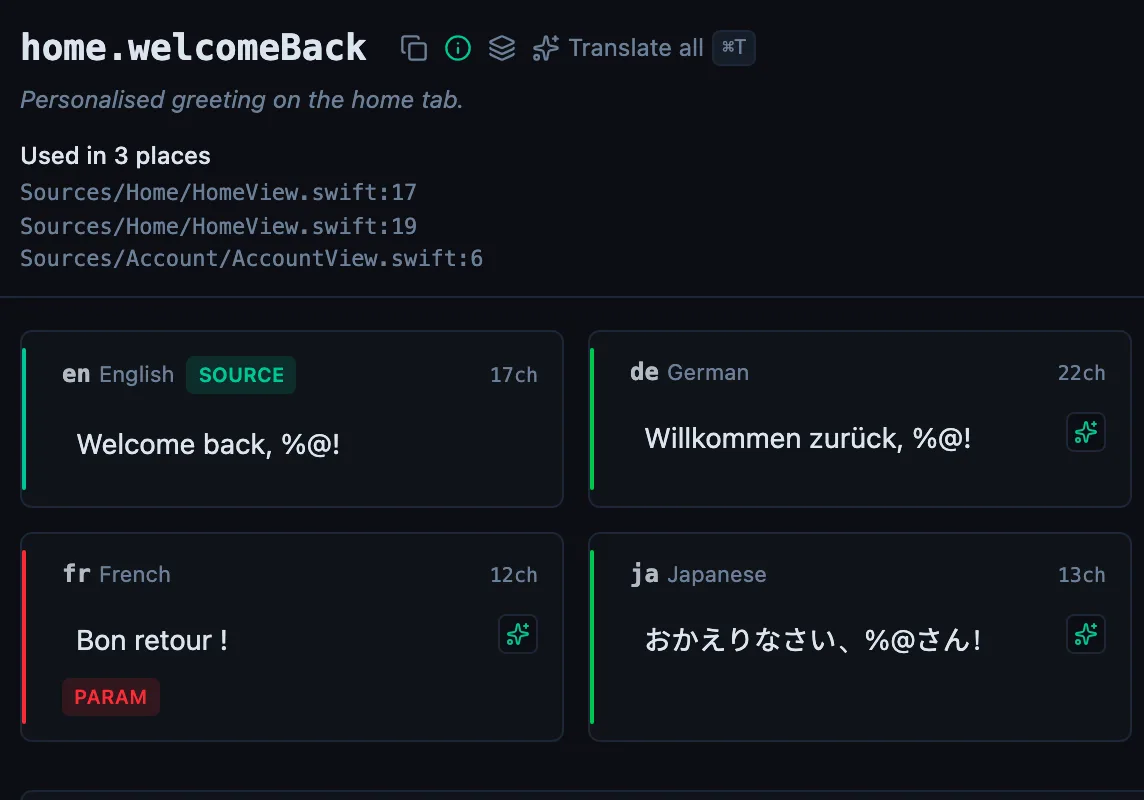
See every locale side by side
The desktop app flags what is missing or broken on the cell, and saves to your files.
14-day trial, no email