How to Search and Filter Translations
Find keys by name or content, filter to issues only, show only the keys missing in one locale, or, with source stamps on, list the translations that went stale.
Last updated
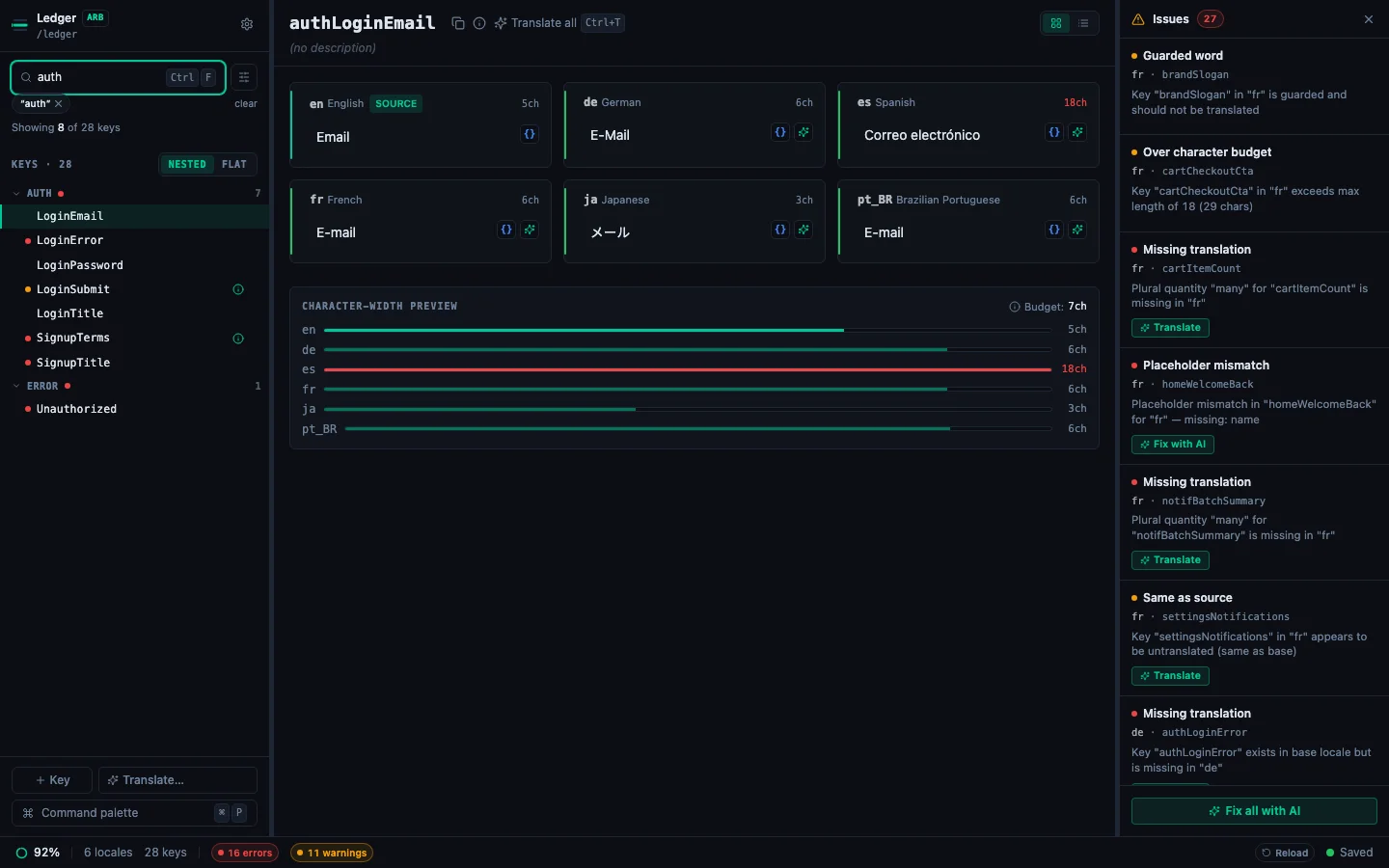
The search bar filters the key list in real time. You can combine a keyword search with the Issues, Missing and Stale or unconfirmed filters to find exactly what needs attention.
Opening the search bar#
- Click the search bar at the top of the editor
- Press ⌘F from anywhere in the editor: the search bar receives focus immediately
Searching by keyword#
Type any string in the search bar. StringLane filters to keys where:
- The key name contains the search term (e.g. searching
buttonmatchessubmitButton,cancelButton) - Any translation value in any locale contains the search term
Matches are case-insensitive. Clear the search field (or press Escape) to show all keys again.
Issues filter#
Click the Issues toggle (shield icon, or press ⌘⇧I) to show only keys that have at least one validation badge in any locale. This is the fastest way to find everything that needs fixing.
Issues filter works alongside keyword search. You can search for "login" and filter to issues at the same time.
Missing filter#
The Missing dropdown lets you filter to keys that are missing a translation in a specific locale. Select a locale from the dropdown and only keys with a Missing badge in that locale appear.
This is useful when onboarding a new locale. You can see exactly which keys still need to be added. A string an Android override folder such as values-fr-rCA/ inherits from its parent is not listed here, because Android shows the parent's text.
Stale or unconfirmed filter#
With source stamps on, tick Stale or unconfirmed in the filter popover to keep only the keys that have a cell marked Stale or Unconfirmed: translations whose source text changed since they were confirmed, or that nobody confirmed. A chip above the key list names the filter, and ✕ clears it. The option is hidden while stamps are off or paused. See How to Find Translations That Went Stale.
Combining filters#
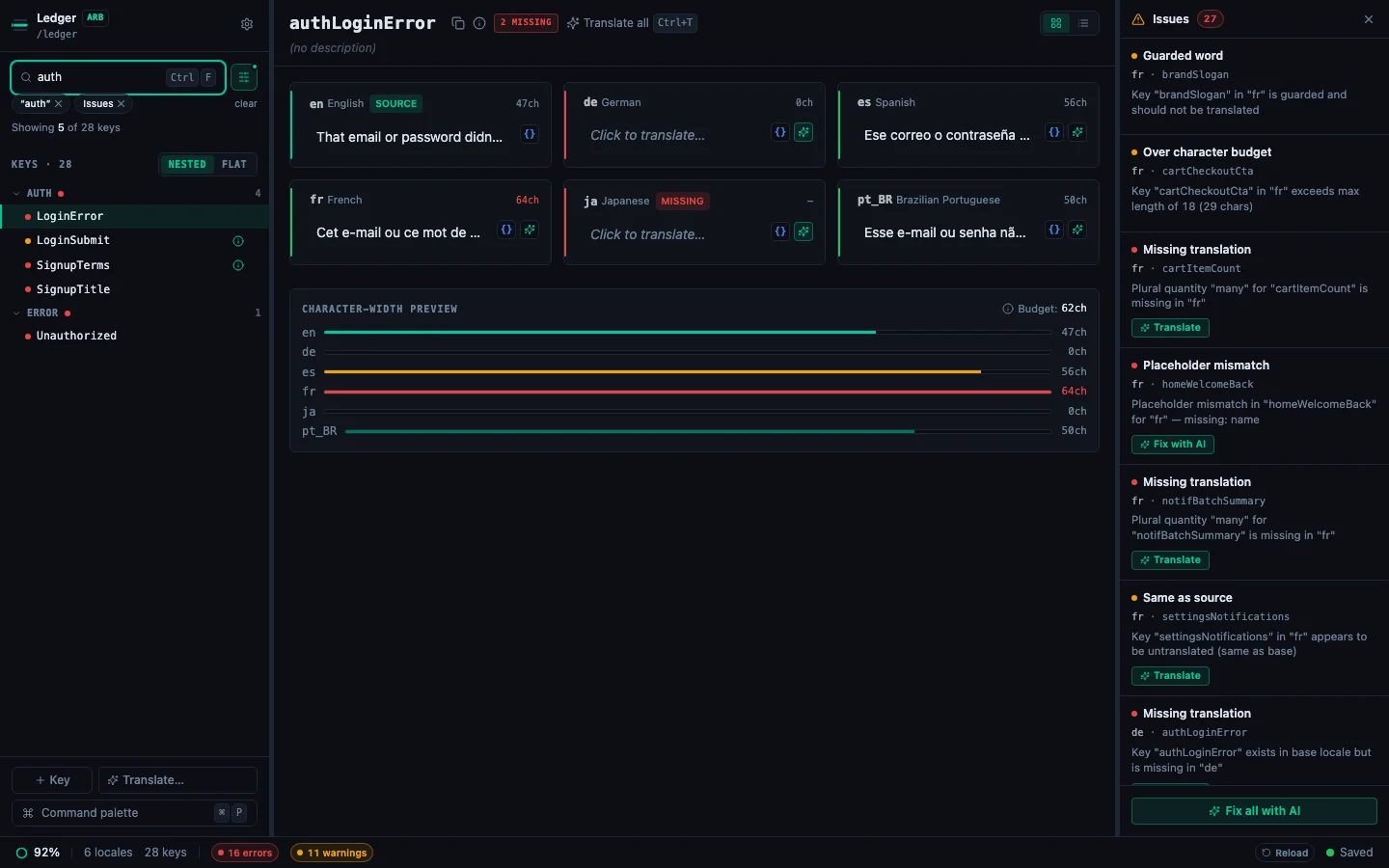
All the filters stack:
- Keyword:
error - Issues: on
- Missing locale: French
Result: keys whose name or value contains "error", AND which have a validation issue, AND which are missing in French. Stale or unconfirmed narrows the same way. This is a very specific scope: useful for targeted review sessions.
CMD+F shortcut#
⌘F focuses the search bar from anywhere in StringLane: even when a cell is in edit mode (Escape first, then ⌘F). This matches the standard browser search shortcut and makes searching fast.
See every locale side by side
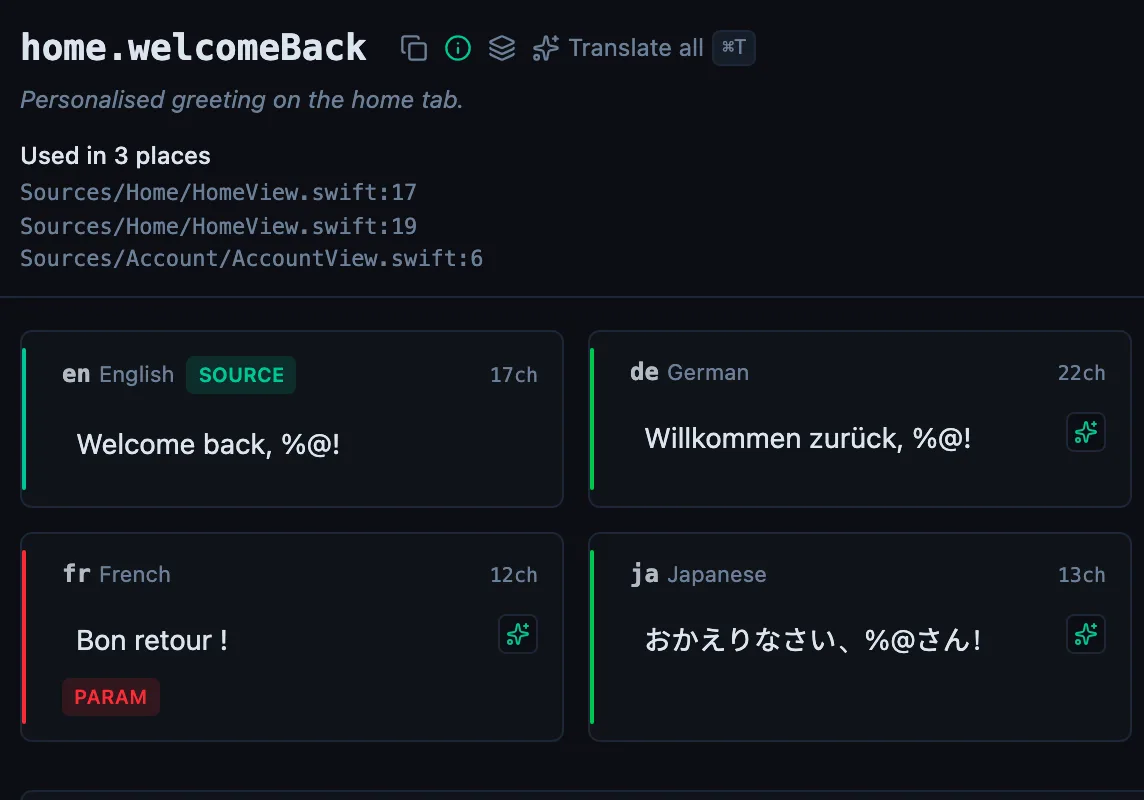
The desktop app flags what is missing or broken on the cell, and saves to your files.
14-day trial, no email