How to Use the Command Palette
Press ⌘P to open one searchable menu for every StringLane action: add keys, translate, jump to a key, toggle panels, open settings.
Last updated
Press ⌘P anywhere in the editor to open the command palette: one fuzzy-searchable menu with every action in the app.
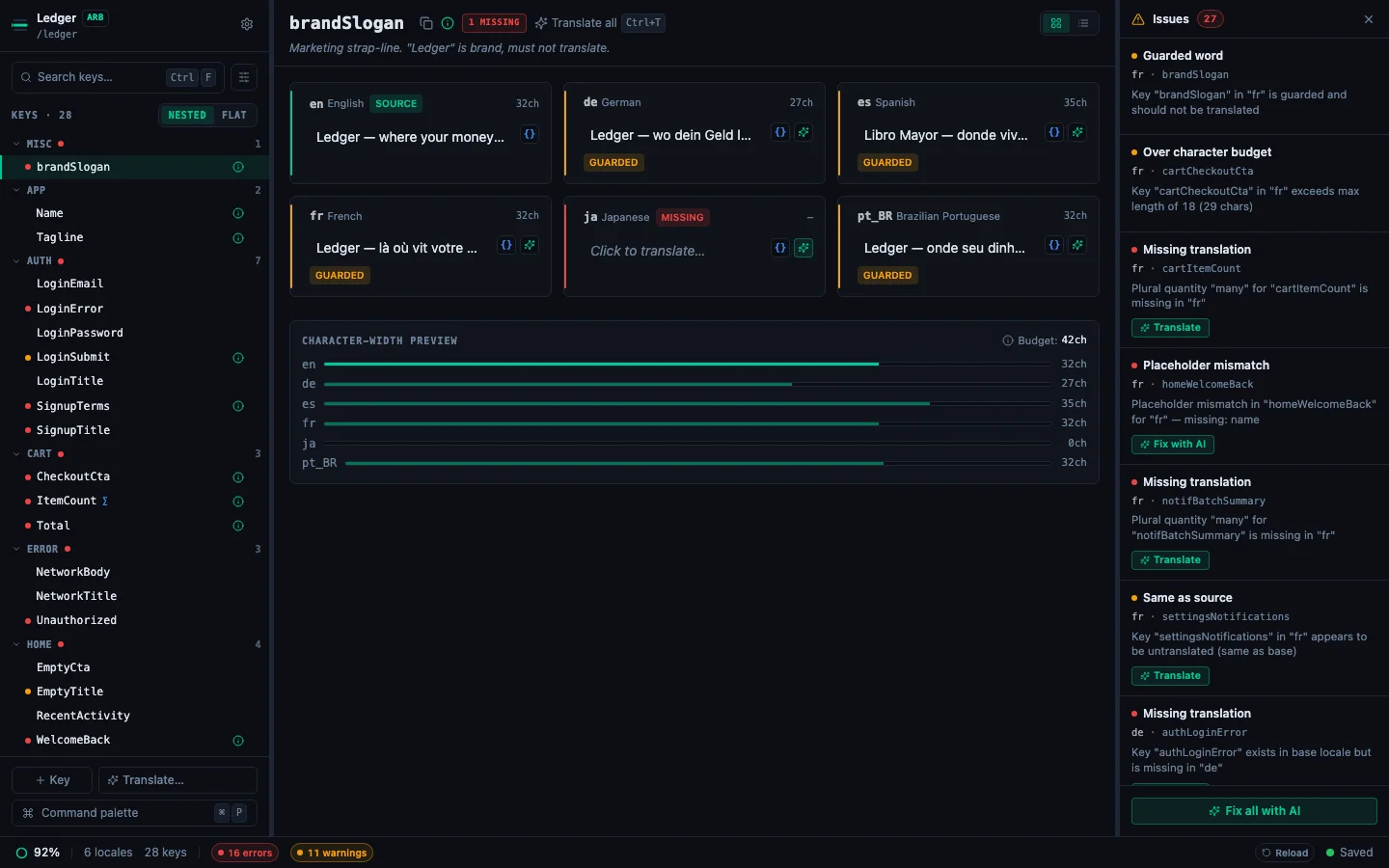
The palette is the fastest way to:
- Add a new key (Add key…: the default accent row)
- Jump to any key by name across your whole project
- Run bulk actions: Translate all missing with AI, Generate AI metadata for all keys
- Reload every locale file from disk after a branch switch, or run flutter gen-l10n without leaving the app
- Toggle panels, switch theme, open Settings or the keyboard shortcuts cheatsheet
How it works#
- Press ⌘P: modal opens, input focused.
- Type: the list filters by fuzzy match across action name, hint, and your project's keys.
- ↑ / ↓, navigate rows. ↵, run the selected row. Esc: dismiss.
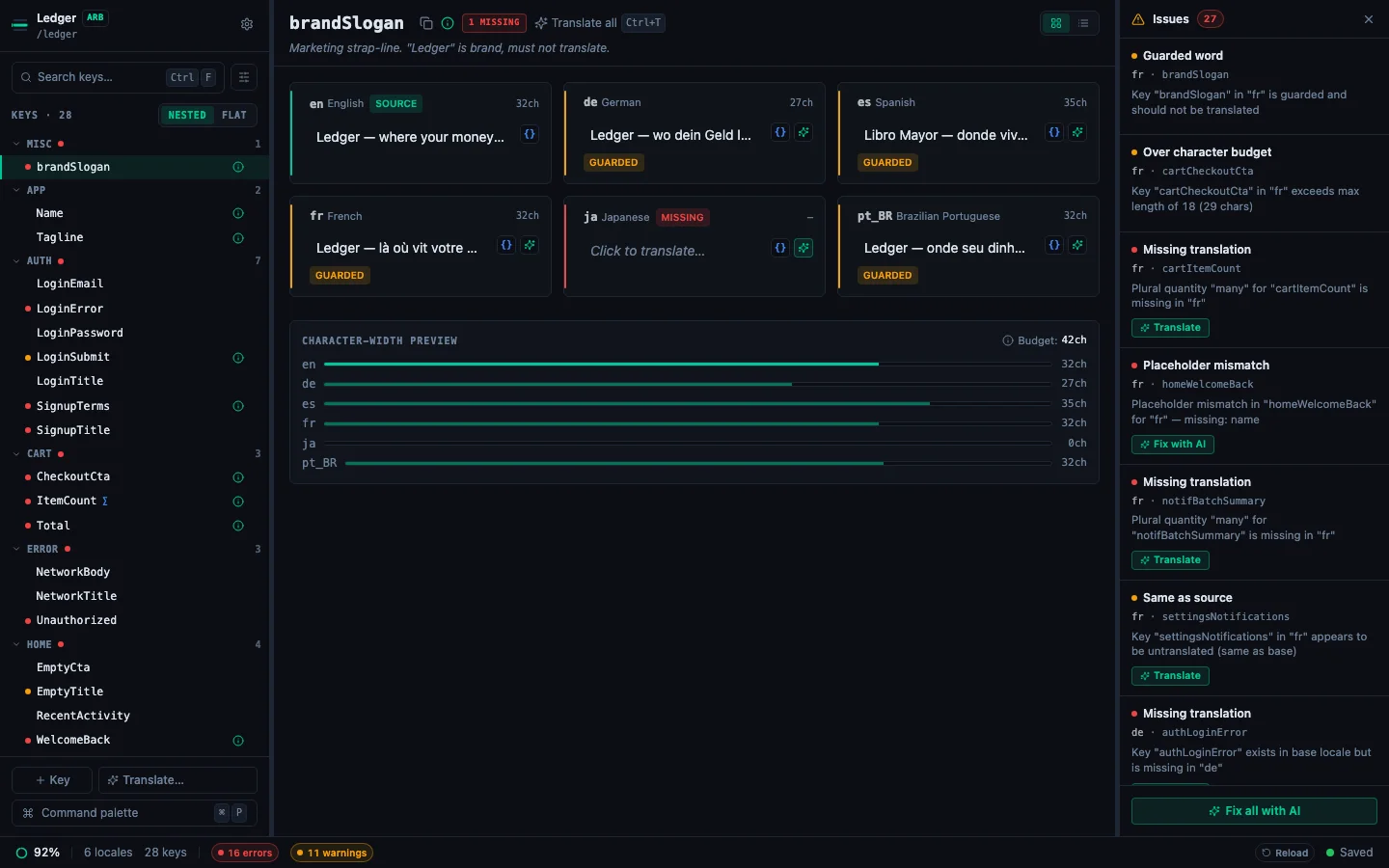
Sections#
The palette groups results under section labels that appear only when the section has visible rows:
- Recent: the 5 most-recent commands you ran, in reverse chronological order. Appears at the top when you open the palette with an empty query.
- Actions: the primary bulk actions — Add key…, Translate all missing with AI, and Generate AI metadata for all keys.
- View & settings: Toggle Issues panel, switch theme (Light / Dark / System), flip the Issues panel orientation, Open Settings.
- Project: Open folder…, Close project, Reload from disk, and on Flutter projects Run flutter gen-l10n.
- Jump to key: one row per key in your project. Fuzzy-matches both the key name and (when you type a value fragment) its translations. Selecting a row loads that key into the detail pane.
- Help: Keyboard shortcuts (
?).
Running a batch translation from the palette#
The Translate all missing with AI action walks you through translating every gap across every non-base locale in one go. It:
- Scans the project for missing keys OR cells where the target value equals the base verbatim (likely untranslated copy-paste).
- Shows a confirm dialog with the count and the involved locales.
- Runs
translateKeysBatchper locale sequentially; you see running progress "N / M across K locales" plus the current locale. - Cancel stops the request in flight and starts no new ones. Translations already written stay.
- Shows a summary with counts + the last error message (if any).
See Translate all missing for the full flow, including the no-API-key path.
Commands that appear conditionally#
Some rows are format- or project-dependent, so the palette will not always show them:
Generate AI metadata for all keys used to be ARB-only. It now runs on .xcstrings, .strings, Android XML and i18next JSON as well, filling in descriptions; on ARB it fills placeholder types too.
Rebinding ⌘P#
The palette trigger is rebindable: Settings → App → Keybindings → click the chord next to Open command palette → press your preferred shortcut. See Customize keybindings.
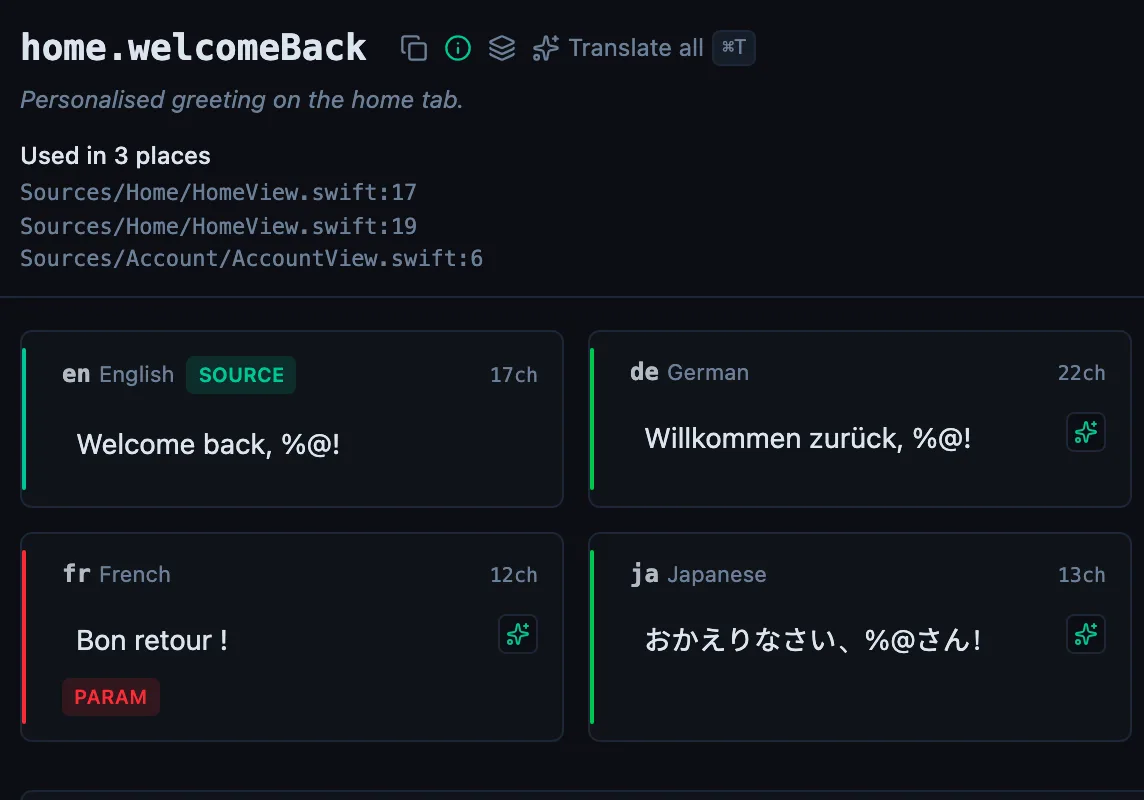
See every locale side by side
The desktop app flags what is missing or broken on the cell, and saves to your files.
14-day trial, no email