Translate App Strings with a Local LLM (Ollama, LM Studio)
Translate your app's localization files with Ollama, LM Studio or Jan on your own machine. Base URLs, setup, model choice, and the speed to expect.
Last updated
StringLane's Local LLM (OpenAI-compatible) provider lets you translate without sending data to any cloud. It works with any inference runner that exposes an OpenAI-compatible HTTP API: Ollama, LM Studio, Jan, llama.cpp, vLLM. Translations are written to your locale files and validated like any other edit, so a local model that drops a placeholder or a plural category is flagged on that cell.
Why local#
- No API key, no per-token billing.
- No network egress. Your strings stay on the machine.
- No rate limits beyond your hardware.
- Smaller models (Llama 3.2, Qwen 2.5, Mistral 7B) are good enough for translation tasks when paired with StringLane's locale-aware prompts.
Step 1: Run a local model server#
Pick whichever runner you already have:
Start the server, pull/load a model, and confirm you can curl the /v1/models endpoint.
Step 2: Configure StringLane#
Open Settings → App → AI Providers (or run "Open Settings" from the Command Palette).
- Provider: pick Local LLM (OpenAI-compatible).
- Base URL: enter your runner's URL. Default is
http://localhost:11434/v1(Ollama). Adjust per the table above. - Model: type the exact model name your runner has loaded (e.g.
llama3.2,qwen2.5:14b,mistral). - No API key field appears: local runners typically don't authenticate.
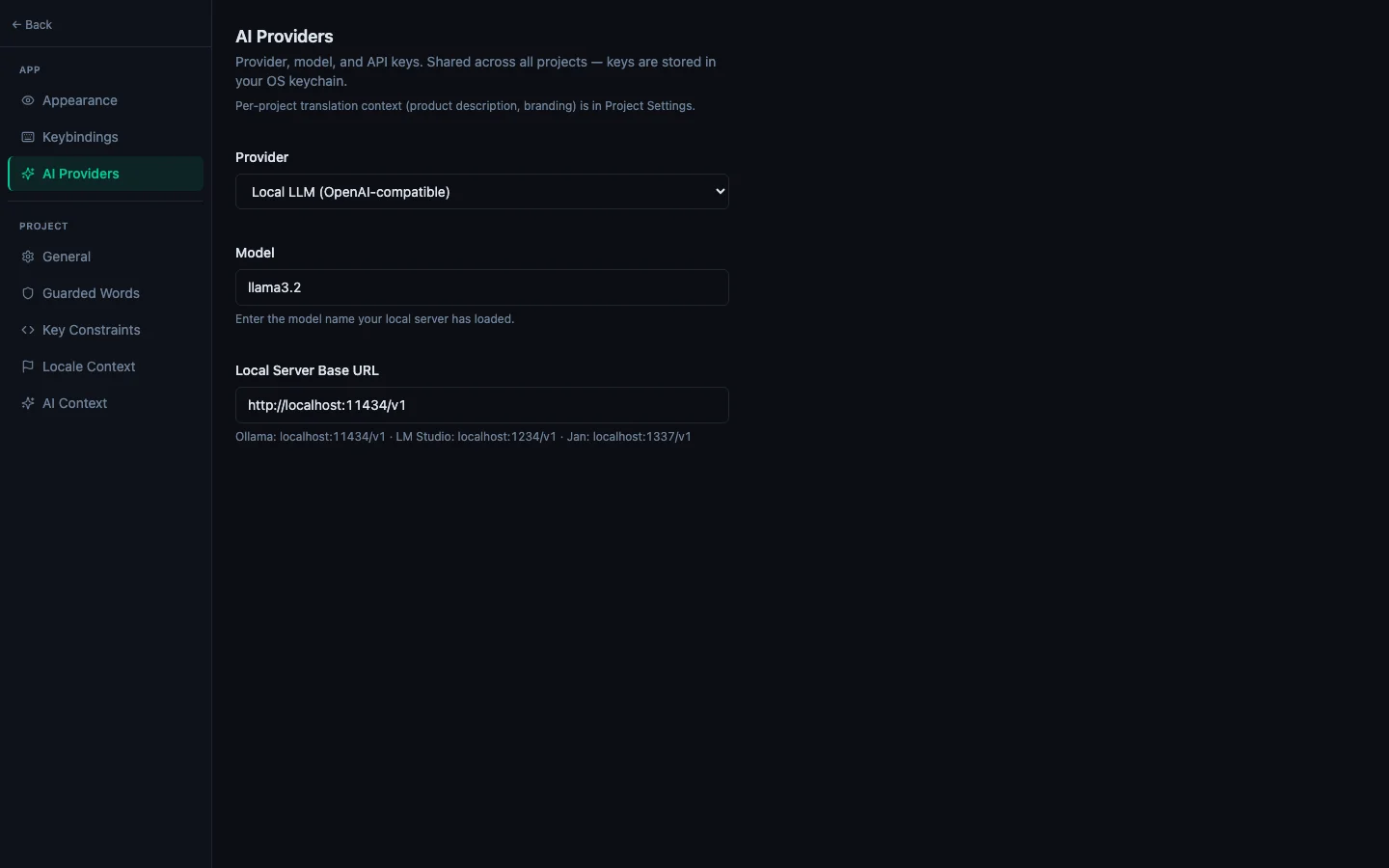
Save and close Settings.
Step 3: Translate#
Use the same flows you would with a cloud provider:
- Per-cell ✨ button on a Missing or Same row.
- ⌘T: translate the active key into every non-base locale.
- ⌘⇧T: translate (or re-translate) only the focused locale's field, leaving the key's other locales untouched.
- Translate all missing with AI from the Command Palette: sweeps every gap across every locale.
- Fix all with AI in the Issues Panel: repairs ICU and placeholder errors in place.
StringLane's prompts already include CLDR plural rules, locale formality / honorifics, format-specific placeholder dialects, and a glossary of recurring terms. Those are sent regardless of provider, so a local model gets the same context a cloud model does.
What to expect#
- Latency. A local 7B model on a Mac M-series will produce a translation in 1-3 seconds per key. A bulk run sends as many requests at once as Settings → App → AI Providers → Concurrent requests allows (default 2). Most local servers answer one request at a time, so raising it rarely helps unless your runner supports concurrent inference, as LM Studio and vLLM do.
- Quality. Larger models (14B+) match cloud quality on common locale pairs. Smaller models (3B-7B) are adequate for short UI strings; quality drops on complex ICU plurals or rare locale pairs.
- Memory. Plan for the runner to hold the model in VRAM/unified memory while StringLane is open. Quit the runner when you're done if you need the RAM back.
Troubleshooting#
- "Could not reach the model server" error: confirm the runner is up (
curl http://localhost:11434/v1/models) and the URL in Settings exactly matches. - Translation comes back as a code block or refusal: the model is misinterpreting the system prompt. Try a different model; instruction-tuned
*-instructvariants behave best. - Empty translations: the runner returned non-JSON. StringLane's parser logs a
TranslationParseErrorand skips that key. Check the runner's console for the raw response.
Related#
- Set Up AI Translation in 5 Minutes: cloud providers (BYOK).
- How to Translate All Missing Cells at Once: bulk flow that works with any provider.
- How to Use the Issues Panel: Fix-with-AI also runs against your configured provider.
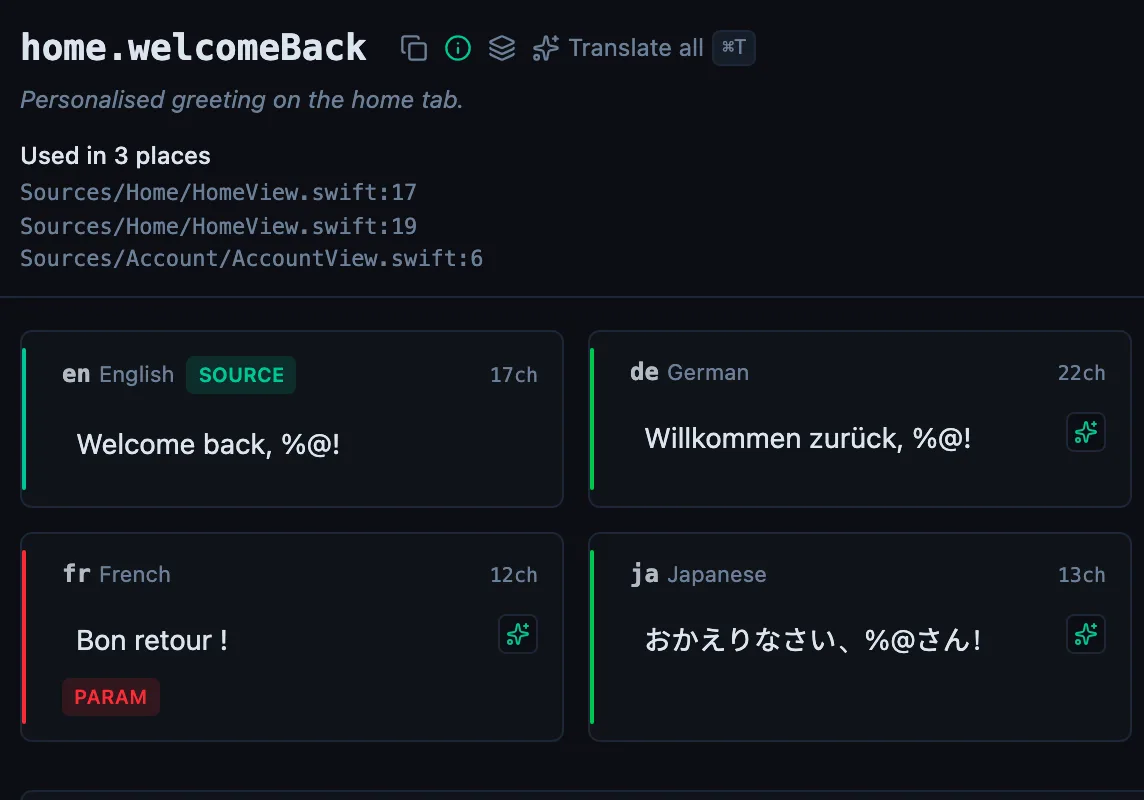
See every locale side by side
The desktop app flags what is missing or broken on the cell, and saves to your files.
14-day trial, no email