How to Open a Localization Project
Three ways to open a localization folder in StringLane, what auto-detection covers, and how multi-module Android + namespaced i18next projects load.
Last updated
StringLane reads directly from your project folder: no import step, no proprietary configuration file, no central index to maintain.
Three ways to open a project#
Drag and drop. Drag any folder (or even an individual localization file) from Finder, Explorer, or your file manager onto the StringLane window. The Drop Zone overlay confirms the gesture, then StringLane scans the folder recursively for supported localization files.
⌘O / Ctrl+O. Press the shortcut, or choose File → Open Folder from the menu, then navigate to your project root or localization subdirectory and click Open.
Command Palette. Press ⌘P (Ctrl+P on Windows/Linux) and run Open folder….
What StringLane auto-detects#
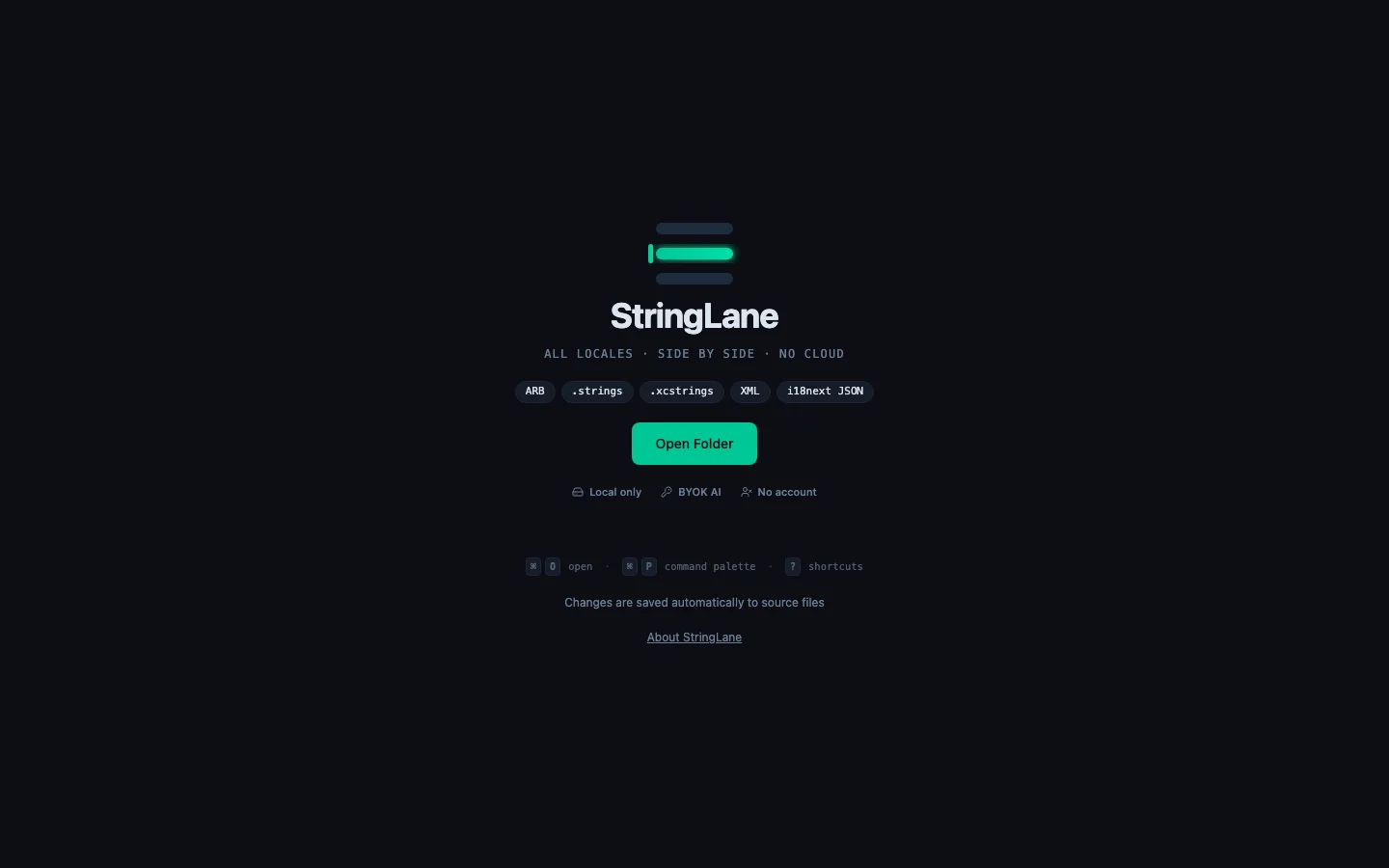
StringLane recognises five supported formats and four project ecosystems.
Supported formats#
- Flutter ARB:
.arbfiles (e.g.app_en.arb,intl_en.arb). - iOS
.strings. Apple.stringsfiles inside.lprojdirectories. Quoted ("key" = "value";) and bare-identifier (key = "value";) syntax both parse. - Apple String Catalog:
.xcstringsfiles (Xcode 15+). - Android XML:
strings.xmlfiles insideres/values*/directories. - i18next JSON: flat layout (
en.json,de.json) and namespaced layout (<lang>/<ns>.json).
Two Flutter packages that keep their strings in JSON open the same way, with no setup, from desktop 1.3.0: easy_localization (en.json, en-US.json in assets/translations/ or assets/langs/) and slang (en.i18n.json in lib/i18n/ or assets/i18n/, including slang's namespaced widgets_en.i18n.json files). Nested keys read the way you call them, so example.hello in the JSON is the key example.hello. From desktop 1.4.0 each package is checked by its own rules: placeholders in its own syntax ({} and {name} for easy_localization, $name and {name} for slang), and a nested map of plural forms such as {"one": …, "other": …} is one plural key, checked for the forms each language needs and saved back where it was. easy_localization projects are not asked for few and many, because easy_localization does not read them by default. slang files in locale-named folders (i18n/en/widgets.i18n.json) are not detected yet: point StringLane at the folder instead.
Project-type detection#
When you open a folder, StringLane looks for marker files to classify the ecosystem and find the most likely locale-file path automatically:
Each ecosystem has its own catalog of conventional locale-file paths drawn from real-world OSS projects. Apple SPM packages, Tuist workspaces, React Native iOS, Compose Multiplatform, Astro / Nuxt / SvelteKit / Remix flat layouts, and more. The recursive folder fallback descends up to four levels deep, skipping Pods, build, node_modules, and similar build artefacts as a safety net for novel layouts.
Multi-module Android, as one virtual project#
Open a Gradle workspace where strings.xml lives in multiple modules and StringLane merges every module into a single editable project. Keys are prefixed with the module path (slashes converted to dots), so feature/foryou/src/main/res/values/strings.xml shows up as feature.foryou.<key>. The nested sidebar view groups them automatically: feature → foryou → welcome_title. Edits save back to the originating module's values-<lang>/strings.xml file with the prefix stripped. Adding a locale mirrors the most-localized existing locale's module set so the new language appears wherever the others do.
A project with a single module outside the usual app/ folder, such as mobile/src/main/res or core/ui/src/main/res, is found by the same walk and loads as an ordinary project, with no module prefix on its keys. The path is saved to stringlane.yaml, so the next open goes straight to it.
The unnamed res/values/ folder carries no locale code, so StringLane assumes it is English. If yours is another language, set defaultFileLocale: de (or whichever code) in stringlane.yaml. A values-fr/ folder or a tools:locale attribute still names its own language.
Android regional overrides#
A regional folder such as values-fr-rCA/ next to values-fr/ often holds only the strings that differ from its parent, and Android shows the parent's string for the rest. StringLane reads it the same way: a string the override does not define appears as an inherited cell, with the parent's text in italics, and is not counted as missing. See How to Use the List View. The parent must be the same language in the same script, so values-zh-rTW/ does not inherit from values-zh/.
iOS multi-target projects, as one virtual project#
iOS workspaces where each target ships its own localization cluster: a main app, a shared module, and a watch extension each with their own .lproj/*.strings folders, or multiple Localizable.xcstrings files in sibling target directories: load as a single editable project. StringLane walks the workspace, collects every .lproj cluster and every .xcstrings file (skipping .xcodeproj, .xcworkspace, and .xcassets bundles), and prefixes each key with its origin folder so namespaces stay disjoint. For example, MyApp/Core/Assets/<lang>.lproj/Localizable.strings shows up as MyApp.Core.Assets.<key> and WatchApp/Core/Assets/<lang>.lproj/Localizable.strings as WatchApp.Core.Assets.<key>. The nested sidebar view groups them automatically. Saves go back to each origin's own file in its native format: .strings writes per-locale (with companion .stringsdict for plurals), .xcstrings writes the whole locale set in one file, so mid-migration projects that mix both formats keep working. Non-standard filenames inside .lproj (e.g. SharedLocalizable.strings) are picked up too.
Namespaced i18next projects#
Folder layouts shaped like <root>/<lang>/<ns>.json (the next-i18next default used by Cal.com, Documenso, and Plane) load with every namespace merged per locale. Keys are prefixed by namespace with : (e.g. common:greeting, auth:login_button) so they read the same way as t('common:greeting') in your runtime. Edits save back to the right <lang>/<ns>.json file. StringLane records format: i18next-json, path: <root>, layout: namespaced in stringlane.yaml on first open so subsequent opens are deterministic.
When stringlane.yaml pins a path: that holds a namespaced project, StringLane loads that folder alone, with no folder prefix on its keys, and does not load the other folders. Use it to open one app of a monorepo by itself. A path: with no layout: loads as namespaced; layout: flat is always respected.
If your language folders sit inside a folder that is not the project root, such as src/i18n/locales/en/translation.json, open src/i18n or the locales/ folder itself. StringLane finds the language folders and records the path. This works when the folder you open has no project file such as package.json, and, for the locales/ folder itself, when at least two language folders hold a file with the same name.
After the scan#
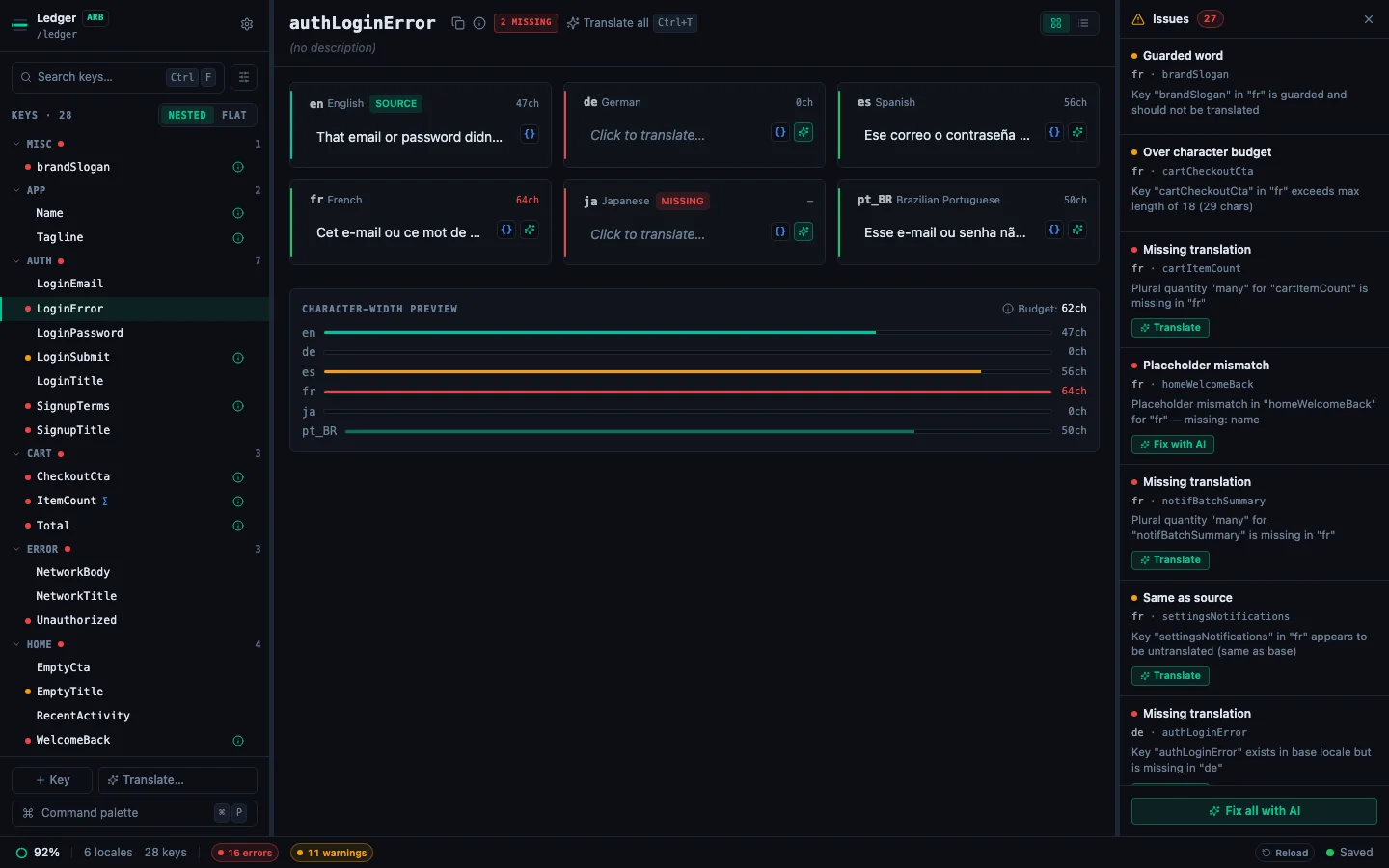
The unified editor loads with:
- Sidebar (left): every key, grouped by namespace by default. Search, filter, and the Command Palette launcher live here.
- Detail pane (centre): the active key plus every locale side-by-side, with the base locale pinned at the top.
- Status bar (bottom): overall completion percentage, error and warning chips, save indicator, and the current Git branch.
Recent projects#
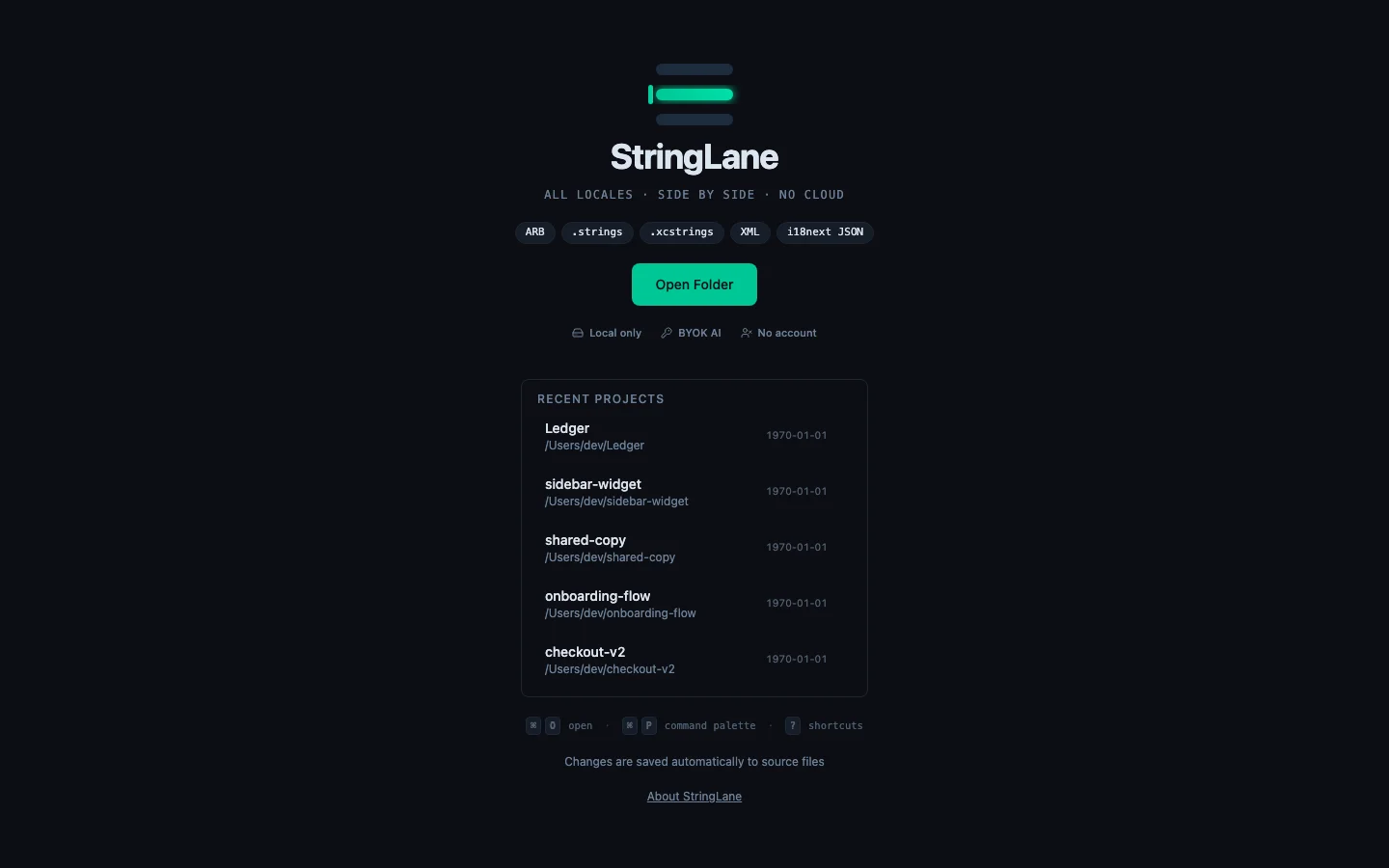
StringLane keeps the five most recently opened projects on the Welcome screen. Each row shows the project format, locale and key counts, completion percentage, and a relative "last opened" time so you can pick up where you left off in one click. Older entries roll off as you open new projects.
When auto-detection needs a nudge#
If you open a folder that StringLane recognises as a project type but can't find locale files in any standard location, a typed recovery dialog names the ecosystem and opens a folder picker so you can point at the actual locale directory. Cancel the picker and the inline error explains exactly what was expected, for example, "no strings.xml found in any res/values/ folder".
Troubleshooting#
No locales appear after opening a folder. Make sure the folder contains ARB, .strings, .xcstrings, XML, or JSON files. Try opening a subfolder (e.g. lib/l10n/ instead of the Flutter project root): auto-detection will catch it on most layouts, but pointing directly at the locale folder always works. For i18next with one folder per language, open the folder above the language folders, such as src/i18n or locales/.
A file fails to load with a message naming it. A damaged .stringsdict (one that is not a valid property list) and a namespaced i18next file reached through a symbolic link are load errors that name the file, rather than being skipped. Fix or replace that file, then reload.
Wrong format picked. Open Settings → Project → General and change the Format dropdown. StringLane will rescan with the chosen parser.
Only one locale appears. You have a single locale file. Use Add a Locale to create more, by entering each one's BCP 47 code.
See every locale side by side
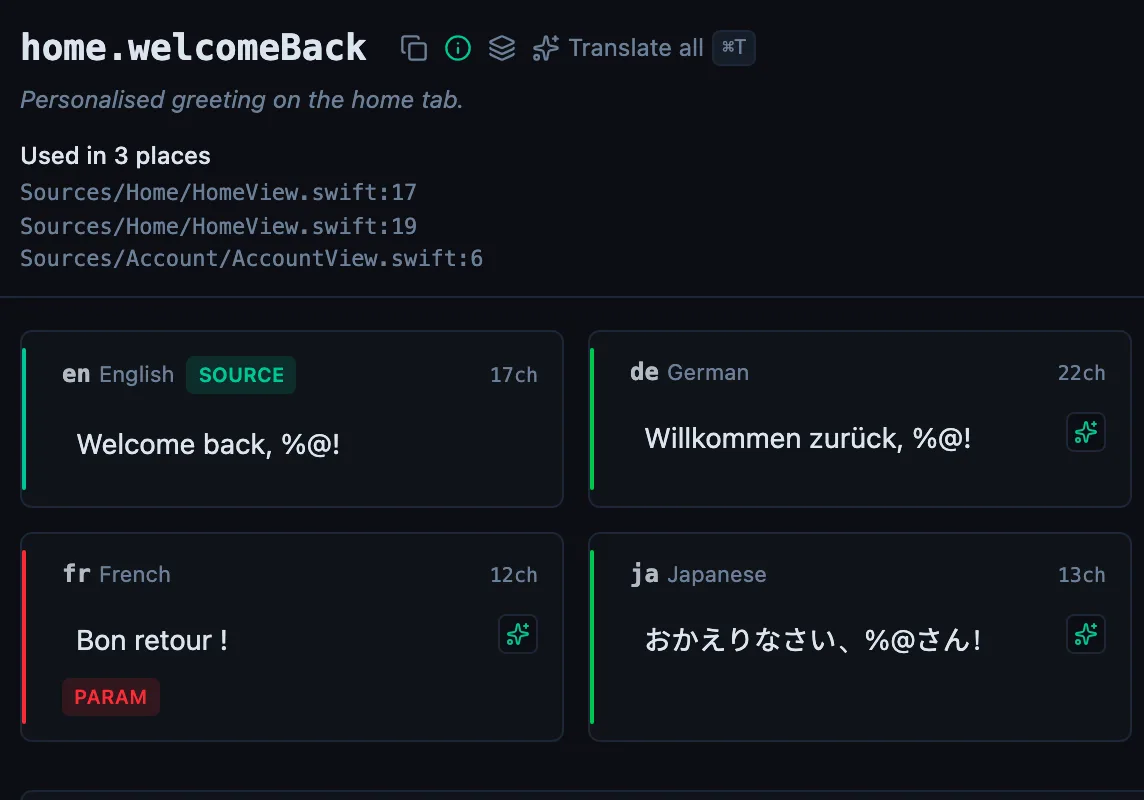
The desktop app flags what is missing or broken on the cell, and saves to your files.
14-day trial, no email