How to Configure Guarded Words and Product Context
Tell StringLane what not to translate and how your product sounds, so AI translations match your brand.
Last updated
Guarded words and product context are configured per project in Project Settings. They affect how AI translation behaves, and guarded words also trigger a validation badge if a translation accidentally overwrites a protected term.
Where these live#
Press ⌘, or click the gear icon in the toolbar. In the sidebar, choose Project → Guarded Words.
Guarded Words is its own section in the Project group, alongside AI Context (product context and branding) and Locale Context. These are per-project settings — they travel with the project, not with your machine. Your provider and API key live separately, under App → AI Providers.
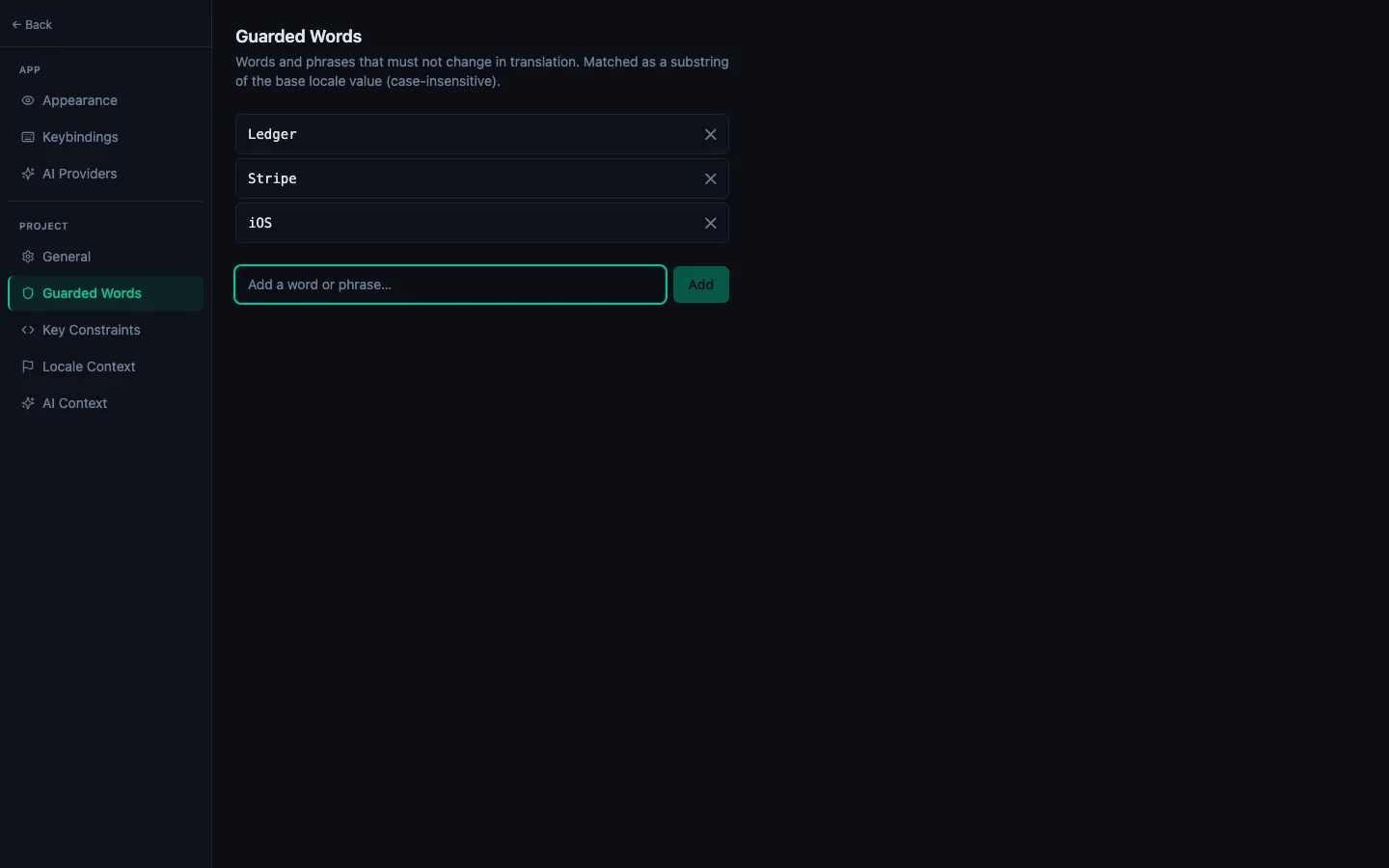
Guarded words#
Guarded words are terms that must never be translated. Your app name, brand names, technical terms, or any string that must appear verbatim in every language.
To add a guarded word:
- Click + Add in the Guarded Words section.
- Type the word or phrase (e.g. "StringLane", "ARB", "App Store").
- Press Enter or click Save.
You can add as many as you need. Each guarded word is stored in your project settings and shared across all locales.
How it works:
- The AI is instructed to never translate these terms, placing the instruction as a hard constraint in every prompt.
- If a translator accidentally changes a guarded word, a Guarded badge (yellow) appears on that cell.
- Clicking ✨ on a guarded-word cell and re-translating will restore the original term.
Product context#
Product context lives in Project → AI Context, in two fields:
Include:
- What the app does (1-2 sentences)
- Who uses it (e.g. "indie developers", "non-technical small business owners")
- Tone and style notes (e.g. "friendly and direct", "formal and professional")
Example:
A desktop localization editor for indie Flutter and iOS developers. Tone: technical but approachable. Users are familiar with software development concepts.
This text is prepended to every AI translation prompt. The more specific it is, the better the results.
Locale-specific context#
Project → Locale Context is a separate section again, holding per-locale cultural notes. For example:
- pt-BR: "Use informal 'você' form. Prefer Brazilian Portuguese idioms over European Portuguese."
- ja: "Use polite form (です/ます). Avoid katakana loanwords where a native term exists."
These notes are passed to the AI only when translating for that specific locale. See Configure Locale Context for Better AI Output for details.
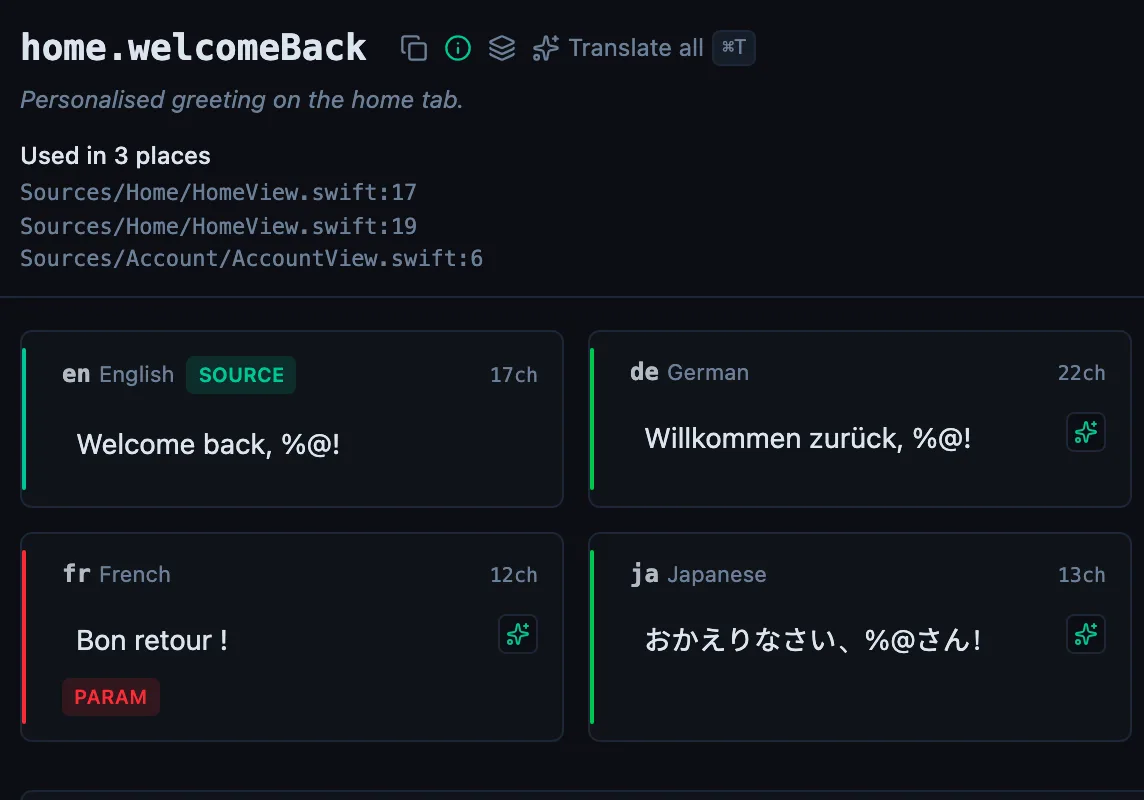
See every locale side by side
The desktop app flags what is missing or broken on the cell, and saves to your files.
14-day trial, no email