How to Use the Issues Panel
Press ⌘J to open one panel listing every validation problem across the project: click to jump, fix per row, or sweep all with AI.
Last updated
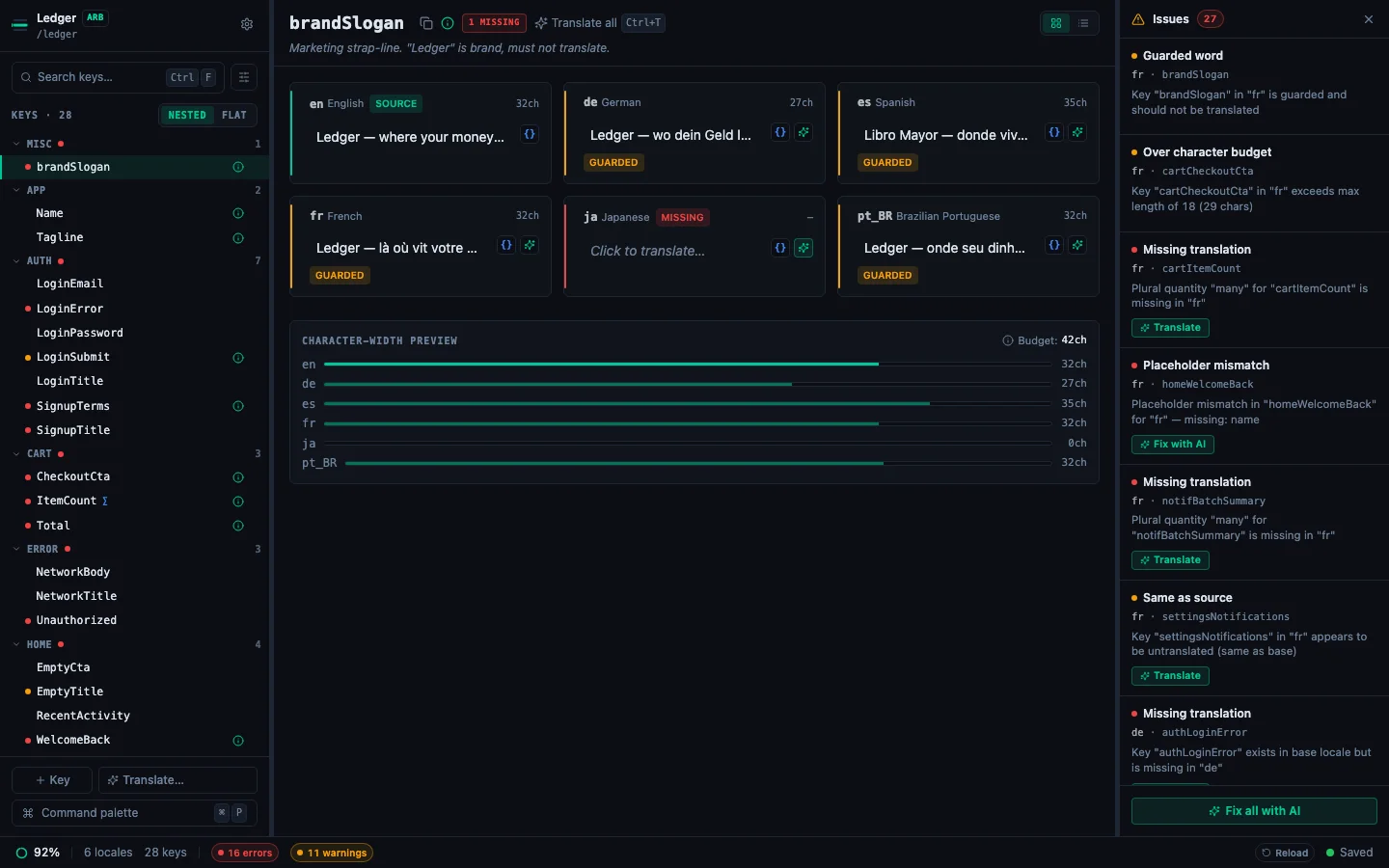
The Issues Panel is the project-wide view of every validation problem StringLane has detected. Press ⌘J (or Ctrl+J on Windows/Linux) to open it. Once a project has any issues, it opens on first load too.
What you see#
One row per (locale, key) issue:
- Severity dot: red for errors, amber for warnings, blue for info.
- Title: short summary ("Missing translation", "Placeholder mismatch", "Guarded word", "Malformed placeholder", "ICU syntax error", "Count without plural forms", "Stale translation").
- Locale · key: quick context for which file and which key the row belongs to.
- Per-row action: ✨ Auto-translate, Fix param, Fix syntax, Fix with AI or Add plural forms…, depending on the issue type. Some rows have none.
The panel header shows a total count badge (Issues · N); the footer shows Fix all with AI when there's at least one AI-addressable row.
What you can do#
Add plural forms to a count#
An i18next base string that shows {{count}} followed by a word, such as {{count}} genres, with no plural forms in any language, reads "1 genres" for every count. Its row is Count without plural forms, reported once on your base language.
- Click Add plural forms… on the row. The Add plural forms dialog opens with one field per plural category your base language needs, such as
oneandotherin English. - Type each form.
- Click Write plural forms. If you have unsaved edits, the button reads Save and write plural forms, and StringLane saves them first; if that save fails, nothing is written.
The forms are written to that key's base file only. No AI is involved, and Fix all with AI leaves these rows out. Other languages keep their text, and the panel then lists the forms each of them still needs, which you can fill like any missing plural form.
Rows with no fix button#
- Stale translation and Unconfirmed translation appear when the project has source stamps on. Whether a translation still fits its changed source text is your call, so the row offers no fix. Edit the cell, or click Accept translation under it. See How to Find Translations That Went Stale.
- A language's own plural, width or device forms. A language can hold a string as plural, width or device forms while the base holds one string, in a String Catalog, an iOS
.stringsdict, or an i18next file under a base that shows{{count}}. StringLane does not write over those forms yet, so their rows cannot be fixed here, and Fix all with AI leaves them out. Edit them in the locale file. - Info rows, with a blue dot, are there to be read, not swept.
Fix-with-AI: what it does and doesn't change#
Fix-with-AI is structural: the AI corrects the broken syntax (an unclosed brace, a missing other plural category, a renamed {name} placeholder) and preserves the rest of your translation. It does not retranslate. If a slot is genuinely empty, use ✨ Auto-translate instead. That's what fills missing translations.
The bulk Fix all with AI button at the footer applies the same logic across every affected row in one pass. Like the Command Palette's "Translate all missing", it batches per locale and per issue class for speed; failures on one bucket don't stop the others.
Right rail vs bottom drawer#
Pick the orientation that fits your screen:
- Right rail (default, 280px wide): best on wide monitors. Drag the divider to resize.
- Bottom drawer (220px tall): best on narrow laptops; gives the detail pane more horizontal space. Drag the top edge to resize.
Toggle from the Command Palette: type panel orientation and pick "Toggle Issues panel orientation". State persists per project.
Tips#
- The panel defaults open only when the project actually has issues, so clean projects don't see empty chrome.
- The status-bar error and warning chips ("3 errors", "5 warnings") toggle the panel on click.
- The sidebar's Issues only filter narrows the key list by keys that have any issue. The Issues Panel lists each individual (locale, issue) row: use whichever fits the task.
- The
⌘Jshortcut is rebindable under Customize keybindings.
Related#
- How to Read Validation Badges: what each issue type means.
- How to Find Translations That Went Stale: the Stale and Unconfirmed rows.
- How to Fix Placeholder Mismatches: the per-row "Fix param" action.
- How to Translate All Missing Cells at Once: the engine behind "Fix all with AI" for missing keys.
- Working with ICU Plurals and Select Forms: what triggers the ICU parse-error rows.
See every locale side by side
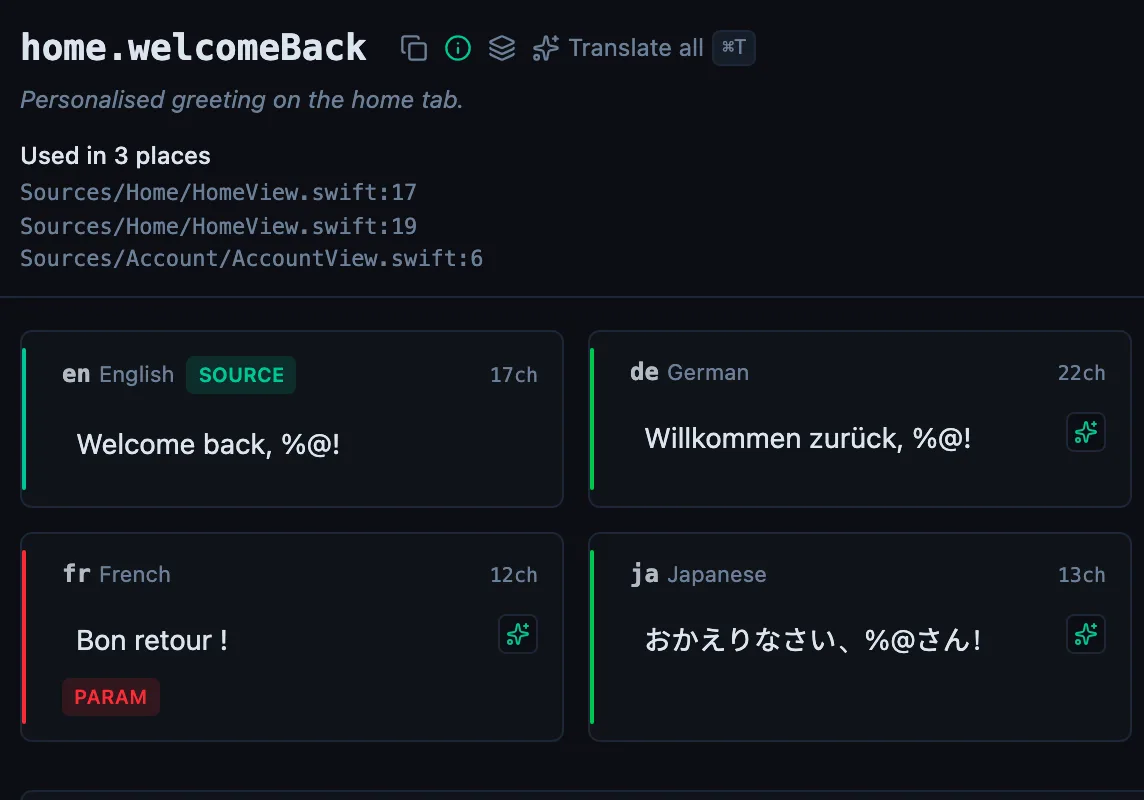
The desktop app flags what is missing or broken on the cell, and saves to your files.
14-day trial, no email