Set Up AI Translation in 5 Minutes
Configure a provider, add your API key, and translate your first key: no cloud account required beyond the AI provider itself.
Last updated
StringLane supports eight AI providers through a bring-your-own-key (BYOK) model. Your key is stored in the OS keychain, never written to disk or project files. You configure it once per provider and it works across all your projects.
Supported providers#
Local LLM is the only provider that needs no API key. It runs entirely on your machine: Ollama, LM Studio, Jan, llama.cpp, vLLM, anything that exposes an OpenAI-compatible API. See How to Translate with a Local LLM. For all others, you'll need an account and an API key from the provider's dashboard.
Step 1: Open Settings → AI Providers#
Press ⌘, to open Settings (or run "Open Settings" from the Command Palette with ⌘P). In the sidebar, choose App → AI Providers.
This is an App section, not a project one: your provider, model and API key are set once and apply to every project you open.
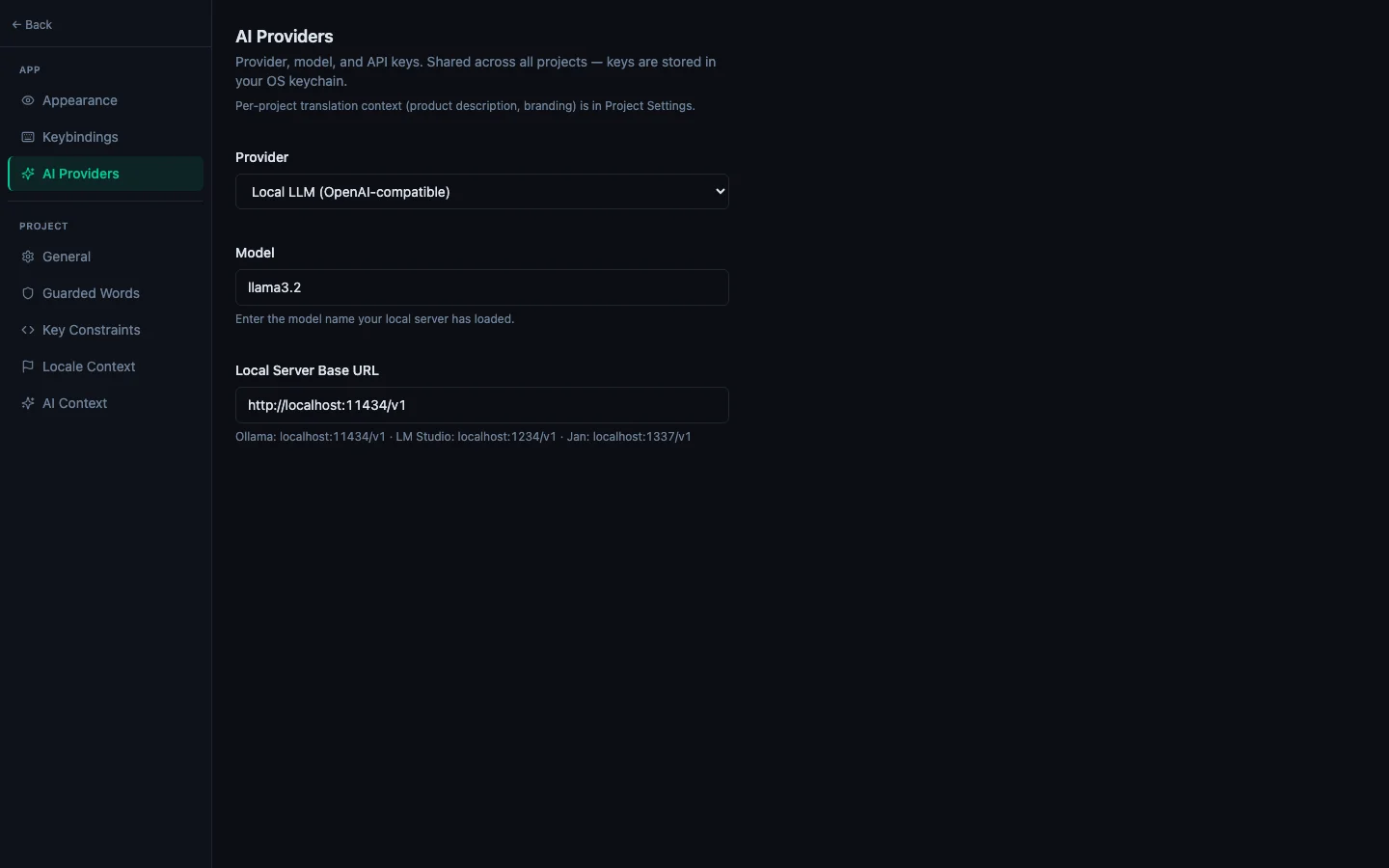
Step 2: Choose a provider and model#
Select your provider from the dropdown. The model field switches to that provider's default, listed in the table above. You can type any model name or pick from the suggestions. StringLane passes the model name straight to the provider's API, so anything the provider supports works, including a model released after your version of StringLane.
Good starting points: the defaults. They are chosen to be the cheap, fast tier at each provider, which is the right trade for short UI strings. Move up a tier only if you see quality problems.
Step 3: Enter your API key#
Paste your key into the API Key field and click Save. Once a key is stored the field shows it as set, with a Remove button beside it.
StringLane stores it in your operating system's credential store, not in a config file:
The panel names the exact store it resolved at runtime. On a Linux box with no Secret Service available, StringLane falls back to an encrypted file in its config folder and tells you so. It is machine-bound and unreadable elsewhere, but weaker than a real keyring.
If you picked Local LLM, there is no API key. Set the Local Server Base URL instead (Ollama's default is http://localhost:11434/v1) and skip to Step 4.
To get a key:
- OpenAI: platform.openai.com → API Keys
- Anthropic: console.anthropic.com → API Keys
- Google: aistudio.google.com → Get API Key
- Other providers: their respective developer dashboards
Step 4: Set reasoning effort (optional)#
Below the model field, Reasoning effort has three settings:
Higher effort improves plural grammar and word choice, at more cost and latency. It applies only to models that expose the control (OpenAI's GPT-5 family and Gemini Flash) and is ignored elsewhere rather than erroring.
Choose how many requests run at once#
Under the provider settings, Concurrent requests sets how many AI requests a bulk run (the Translate… popover, Translate all missing with AI, and bulk metadata generation) keeps in flight. It runs from 1 to 8, and the default is 2. The number is the total for the whole run, spread across locales, not a number per locale.
Raise it if your provider plan allows more requests per minute, and lower it if you see rate-limit errors. Most local servers handle one request at a time, so with a local LLM raising it rarely helps. Every result is still checked as it lands, whatever the setting.
Step 5: Add product context (recommended)#
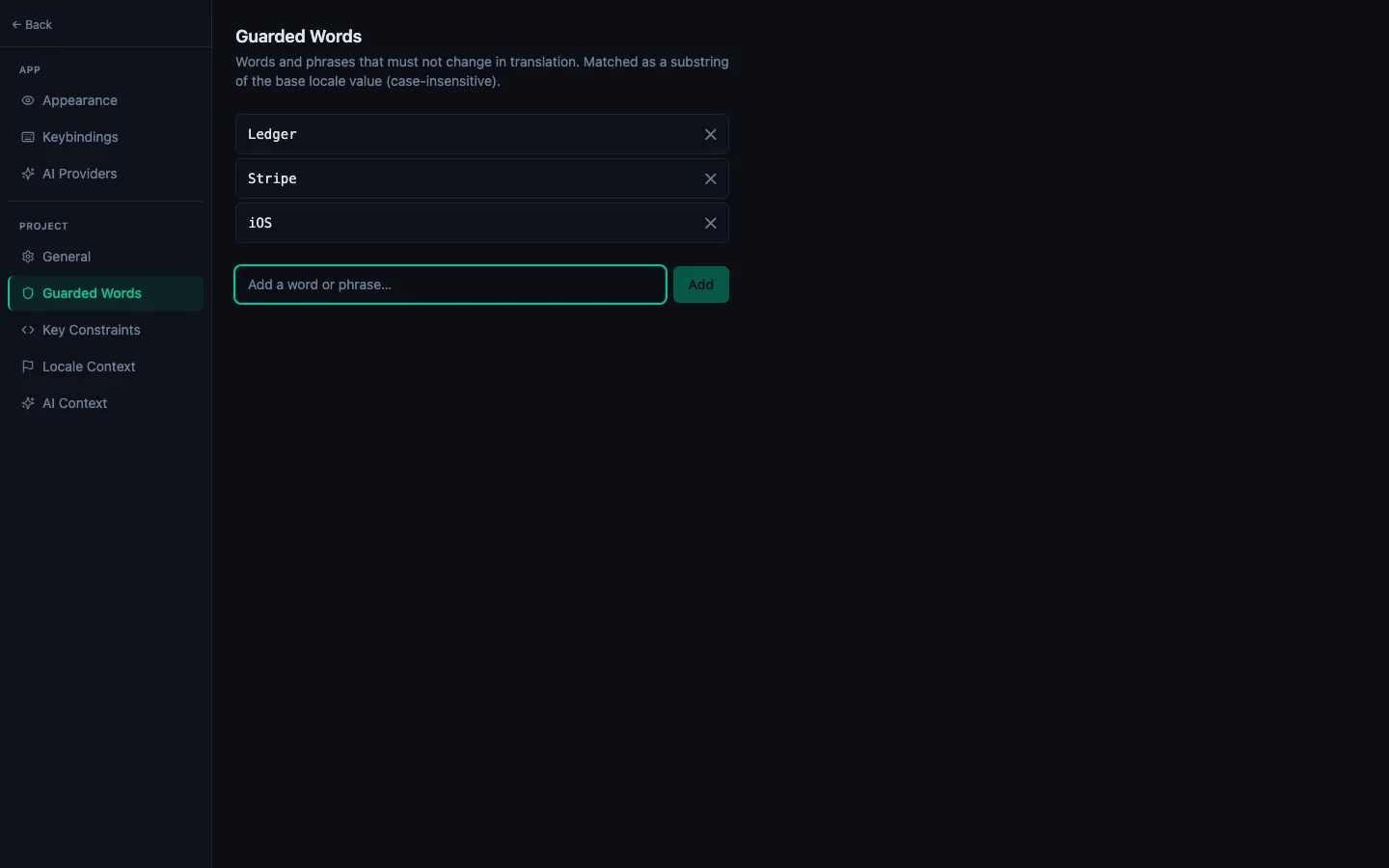
Context is what separates a usable translation from a generic one. It lives in the Project group, because it describes this app:
Product Context is included in every translation prompt. Two or three sentences is enough:
A task management app for freelancers. Tone: friendly and direct. Audience: non-technical users.
See Configure Guarded Words and Product Context for the detail.
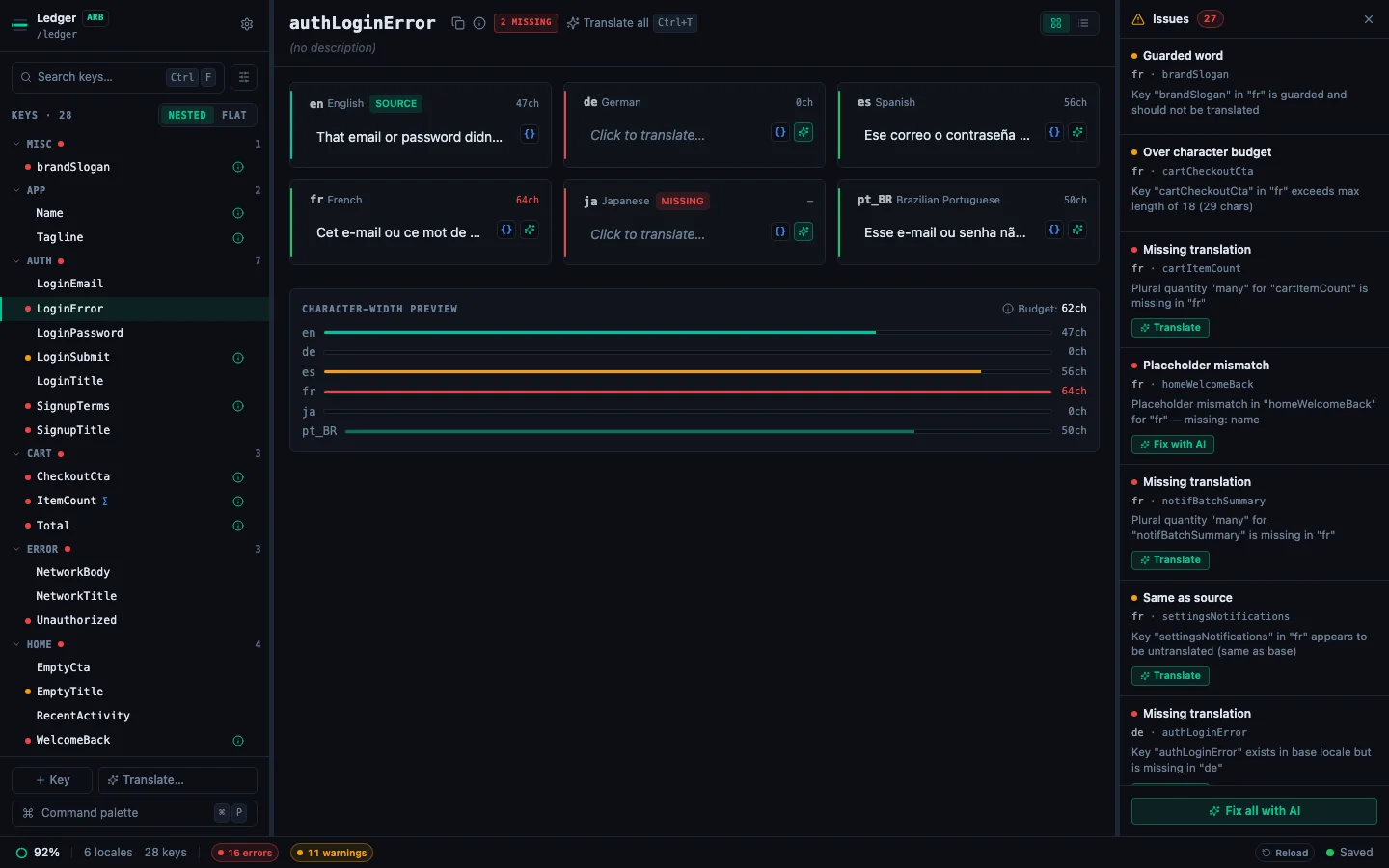
Step 6: Translate your first key#
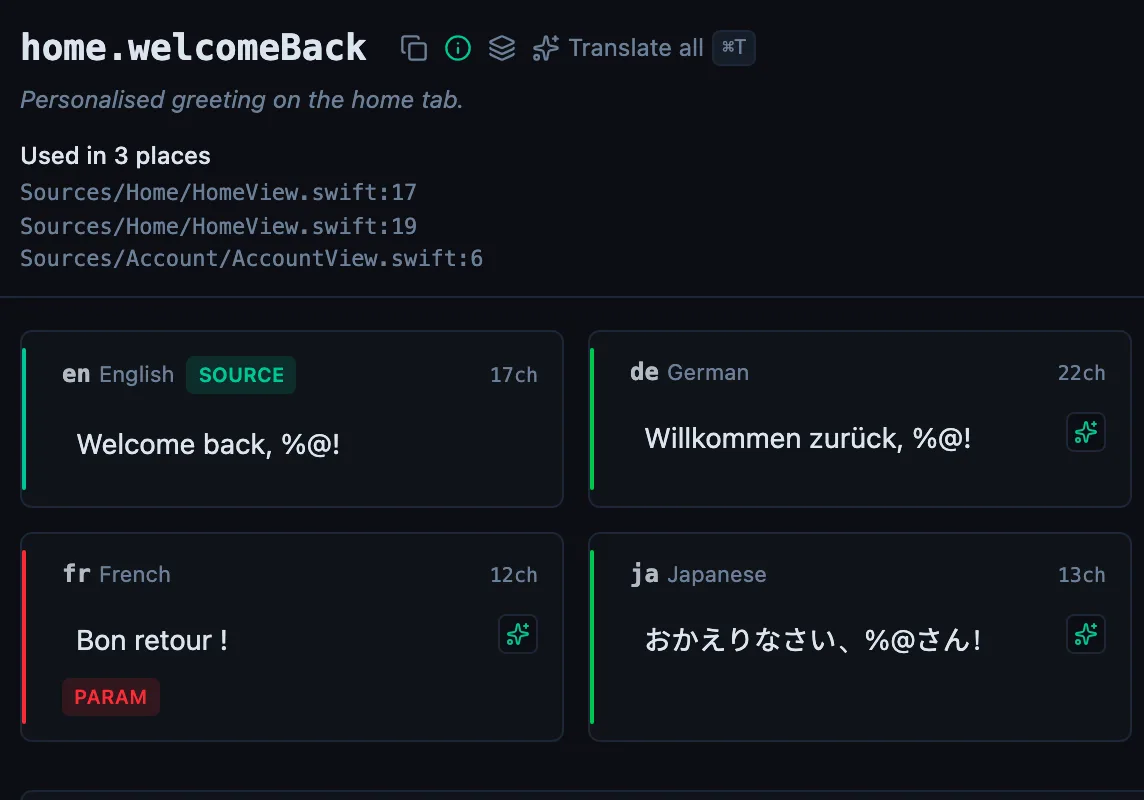
Return to the editor and select any key. In the detail pane, each non-base locale is a card. Hover a card that shows a Missing badge (red) or a Same badge (yellow) and a ✨ button appears.
Click ✨: the cell shows a loading state for a moment, then the translation appears. StringLane auto-saves it immediately.
To do every locale for the active key at once, press ⌘T (Translate all in the key header). ⌘⇧T translates only the focused locale.
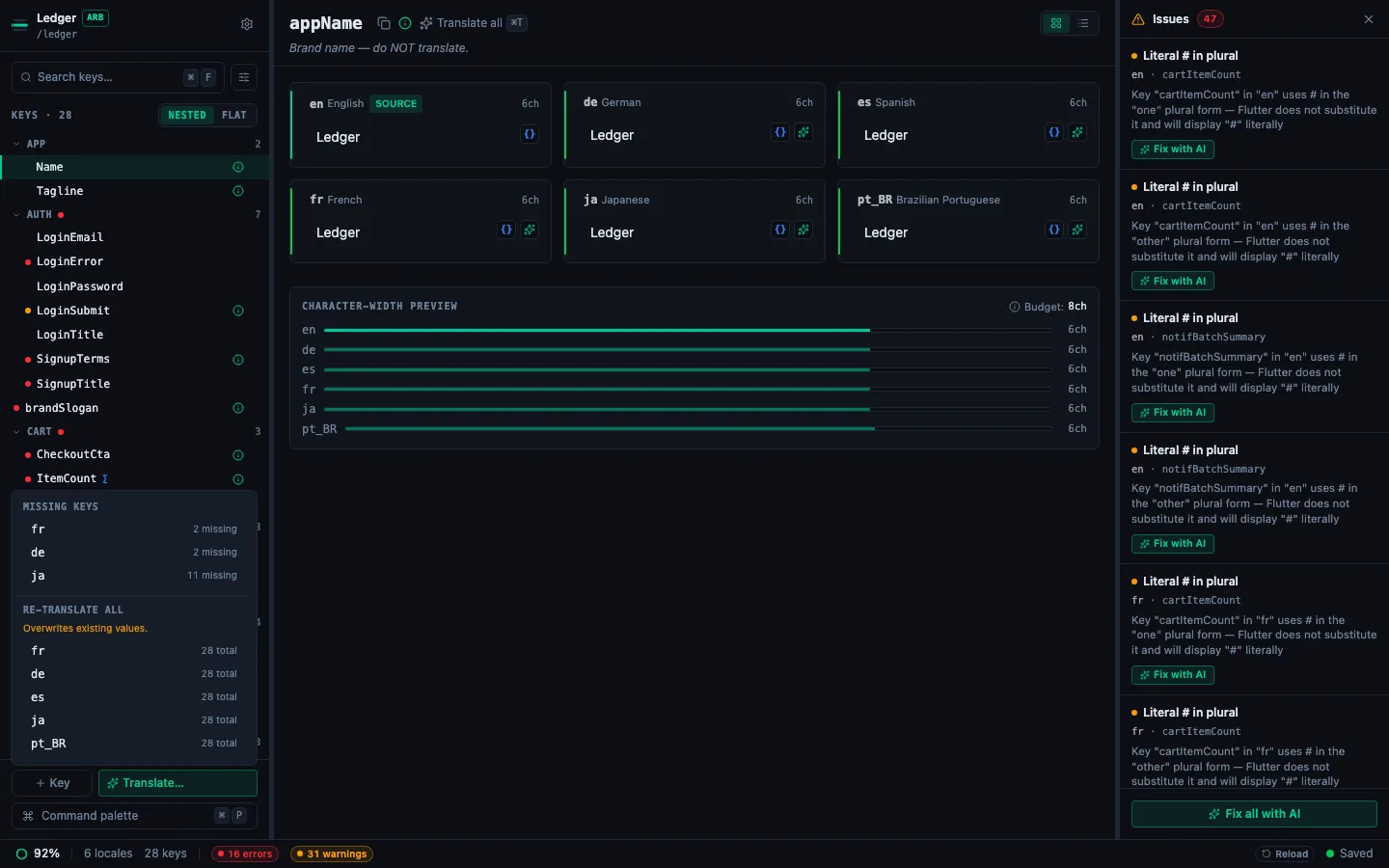
Step 7: Bulk translate a locale#
To fill every missing key in one locale, click Translate… in the sidebar footer. The popover lists:
- Missing keys: each locale with the count still missing. Translates only those; existing values are untouched.
- Re-translate all: every key in that locale, overwriting what is there.
Pick a locale and a confirmation dialog shows the count before anything runs. Progress is tracked key by key and you can cancel at any point; everything already translated is saved.
See How to Bulk-Translate a Locale for the full flow, and How to Translate All Missing Cells at Once to sweep every locale in one pass.
Troubleshooting#
"Go to Settings" prompt instead of a translation: your API key is missing or invalid. Return to Settings → App → AI Providers and re-enter it.
Blank translation after ✨: the model returned an unparseable response. Try the key again. Transient API errors are retried automatically, but an empty response means the model returned a refusal or malformed JSON. Check your model selection.
Guarded word appears translated: add it in Settings → Project → Guarded Words. The constraint is enforced through the prompt, so re-translating the affected key will respect it.
Plural forms come back wrong: raise Reasoning effort to Balanced or High and re-translate. This is the single most common fix for Slavic targets.
See every locale side by side
The desktop app flags what is missing or broken on the cell, and saves to your files.
14-day trial, no email