How to Read Validation Badges
What each validation badge means (Missing, Same, Param, Length, ICU, Guarded, Malformed, Stale, Unconfirmed) and how to fix it, including the wrench autofix.
Last updated
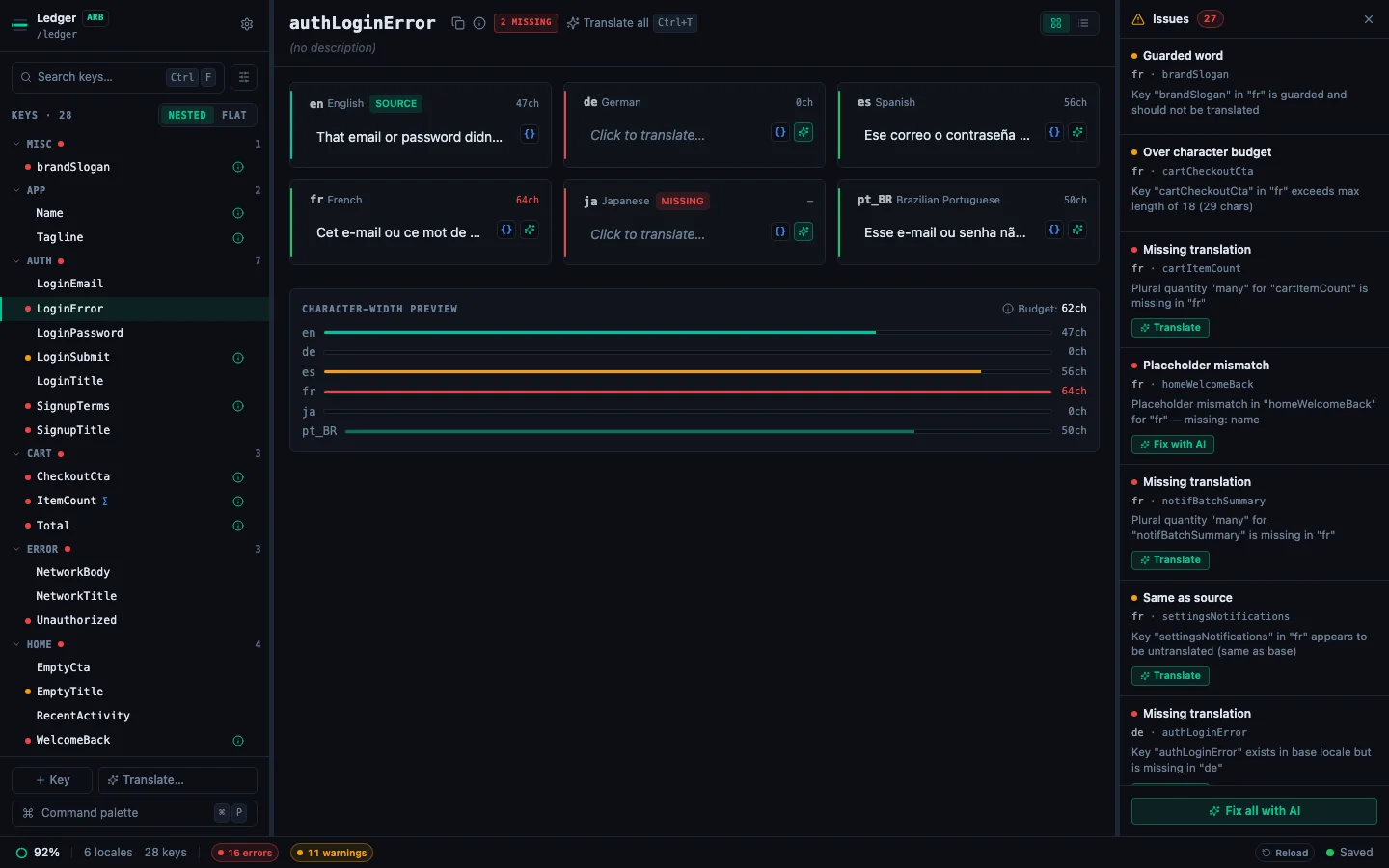
StringLane validates all translations whenever a project loads and after each edit. Problems appear as inline badges on the affected cell. Hover over a badge for a tooltip with the full error message.
Badge types#
Nine badges can appear on a cell. Colour indicates severity (red is an error, yellow or amber a warning), but the badges are distinguished by their label, not their colour, so they stay readable if you can't separate the two hues.
There is a third severity, info. Only one info finding marks a cell: a Same value most of your languages keep on purpose. See Informational findings below.
Missing (red)#
The key exists in the base locale but not in this target locale file. The cell is empty and reads Click to translate….
Fix: Type a translation manually, or click ✨ to translate with AI. To fill a whole locale, use the ✨ Translate… popover in the sidebar footer. To clear missing translations across the whole project in one pass, use Translate all missing with AI from the Command Palette.
Same (yellow)#
The translation is identical to the base locale value. This usually means the key hasn't been translated yet: the source value was copied but not replaced.
Two cases are treated differently:
- A value with nothing to translate is never flagged. A base value made only of placeholders, format specifiers, numbers or punctuation, such as
{name}or%lld, is correct when copied. - A value most languages keep is an info finding, not a warning. When at least three of your languages keep the identical value, and they are at least half of the languages that have the key, it looks like a name or term kept on purpose, such as
SSHorDLC. The cell keeps its Same badge, whose tooltip says how many languages kept it, but its rail does not turn amber. A value that reads as a phrase, such as "Link copied to clipboard", stays a warning even when every language kept it, and a regional variant of the base language, such asen-GBunderen, does not count.
Fix: Check if the string should actually be translated. Proper nouns (brand names, product names), URLs, and technical identifiers often should be the same in all locales: use Guarded Words to mark these intentionally. If it should be translated, click ✨ or edit the cell.
Param (red)#
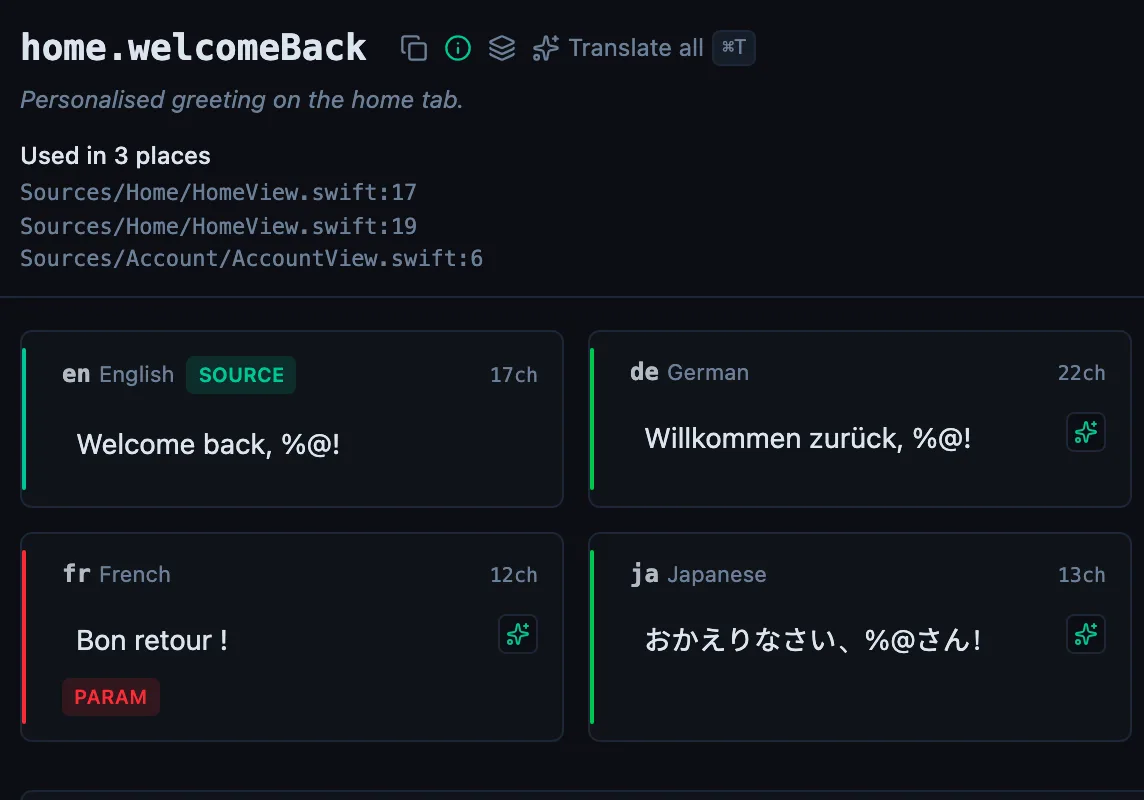
A placeholder present in the base locale is missing from, or wrongly spelled in, the target translation. For example, the base has Hello, {name}! but the Spanish translation is ¡Hola! with no {name}.
Fix: When StringLane can work out the correct string on its own, a 🔧 wrench button appears next to the badge. Click it and the fix is applied instantly, with no AI call and no cost. Otherwise, add the missing placeholder yourself; the tooltip names exactly which one is missing or extra. See How to Fix Placeholder Mismatches.
Malformed (red)#
The placeholder syntax itself is broken: an unclosed {, a stray brace, a % specifier that isn't valid for the format. This is distinct from Param, where the placeholders are well-formed but the wrong set.
Fix: The 🔧 wrench button repairs the common cases deterministically. Click it, or correct the syntax by hand.
Length (yellow)#
The translation exceeds the character budget for that key. The budget is the key's Max length, set in the metadata panel or in Settings → Project → Key Constraints: one value, shown in two places. On ARB it is stored as x-max-length in the @key block; on the other formats it goes to .stringlane/metadata.yaml.
The character-width preview under the detail pane shows every locale as a bar against the budget, so you can see how close the others are before one tips over.
Fix: Shorten the translation. See How to Add Key Descriptions and Limits on Any Format for setting the limits.
ICU (red)#
The translation contains invalid ICU MessageFormat syntax. Common causes: unmatched braces, missing other plural category, or a malformed select clause.
Fix: Click the badge for the specific error, then edit the cell using the ICU Format Helper or Visual ICU Editor. See Working with ICU Plurals and Select Forms.
Guarded (yellow)#
A term marked as a guarded word (brand name, product term) has been translated or modified in this target locale. The translation differs from the base locale value for that protected term.
Fix: Re-translate the key with ✨: the AI will respect the guarded word constraint. Or manually restore the guarded term to its original form.
Stale and Unconfirmed (amber)#
These two appear only when the project has source stamps on. Stale means the source text changed since this translation was confirmed; the note under the cell shows the old text (Was) and the new one (Now). Unconfirmed means nobody confirmed the translation against the source text, or it changed after it was confirmed.
Fix: Edit the translation, and the save confirms it. If it still fits, click Accept translation in the note, which confirms it without changing its text. See How to Find Translations That Went Stale.
Checks listed by name in the Issues panel#
Not every validation result has a badge of its own. These have none of the badges above; they show up as named rows in the Issues Panel (⌘J):
Literal # in plural (warning). An ICU plural body contains a bare #. In most ICU implementations # is substituted with the number, but Flutter's gen-l10n does not do this, so the string ships with a literal # on screen. If you write ARB for Flutter, this is the check that catches it. Each row offers Fix with AI, which tries a deterministic rewrite (# → the plural variable) before falling back to the model.
Missing plural category (error). The target language requires a CLDR plural category the translation does not provide: Ukrainian and Polish need few and many, Arabic needs all six. It also covers a plural with text around it, such as You have {n, plural, …} left. French, Spanish, Italian, Portuguese and Catalan use many only for exact millions, such as 1,000,000, so when many is all such a plural lacks, the row is a warning instead. See Working with ICU Plurals.
Plural form Flutter rejects (error, Flutter ARB). An exact plural form other than =0, =1 and =2, such as =3. Flutter builds no other exact form, so flutter gen-l10n fails on the whole file. Your base language is checked too.
Plural form overridden (warning, Flutter ARB). A plural holds both an exact form and the category Flutter maps it to: =0 with zero, =1 with one, or =2 with two. Flutter keeps the later of the pair, so the earlier branch never shows.
Not in the source (info). A translation holds a key your base language does not. Flutter generates only the keys in your template file, so the app never reads it.
Width format Apple ignores (warning, iOS .stringsdict). A width entry in the framed layout, with the widths under a format variable. Apple's Foundation does not resolve that layout: the app shows the raw format text. Your base language is checked too.
Count without plural forms (warning, i18next JSON). A base string shows {{count}} followed by a word, such as {{count}} genres, and no language has plural forms for it, so every count reads like "1 genres". It is reported once, on your base language. The row's Add plural forms… button writes the forms you type into the base file. See How to Use the Issues Panel.
Informational findings#
Some checks fire on things that are frequently correct: the same English string translated two different ways in two different keys, one translation reused for two different source strings, a word repeated inside a value, an ICU select branch the base locale did not declare, a translation far longer than a translation of that source usually runs. Flagging those as warnings would make the warning count meaningless, so they carry a third severity, info, and the app treats it differently everywhere:
- No cell badge, with one exception. A Same value most of your languages keep is info and keeps its Same badge, so you can still see it on the cell. Every other info finding leaves the cell unmarked.
- No rail colour. The cell's validation rail stays green, though hovering still shows the message.
- No sidebar dot. A key whose only findings are info produces no dot at all.
- No status-bar chip. The chips count errors and warnings only, so a project whose only findings are informational reads as clean there.
- A row in the Issues Panel, with a blue dot rather than red or amber. That panel is the only place these appear.
- No fix button. None of the info codes has a deterministic or AI fix, so the row carries no Fix with AI action. It is there to be read and decided on, not swept.
The full list is in Validation codes, which is shared with stringlane check and the MCP tools: the same finding is informational in a terminal too, so upgrading the CLI cannot turn a green pipeline red.
Row-level indicators#
The key sidebar shows a per-key dot summarising the worst badge in any locale for that key:
- Red dot: at least one error-level badge (Missing, Param, ICU, Malformed)
- Amber dot: at least one warning-level badge (Same, Length, Guarded, Stale, Unconfirmed), no errors
- No dot: no errors and no warnings. Informational findings are not counted here; check the Issues Panel for those.
The status bar carries the project-wide totals: translation percentage, locale and key counts, and error and warning chips you can click to filter.
Use the Issues only filter in the sidebar (or ⌘⇧I) to show only keys with any badge, and the Issues Panel (⌘J) to see every problem in the project as one row per (locale, issue), with click-to-jump and per-row Fix-with-AI actions. Fix all with AI at the foot of the panel sweeps every addressable row in one pass.
See every locale side by side
The desktop app flags what is missing or broken on the cell, and saves to your files.
14-day trial, no email