How to Translate Individual Keys
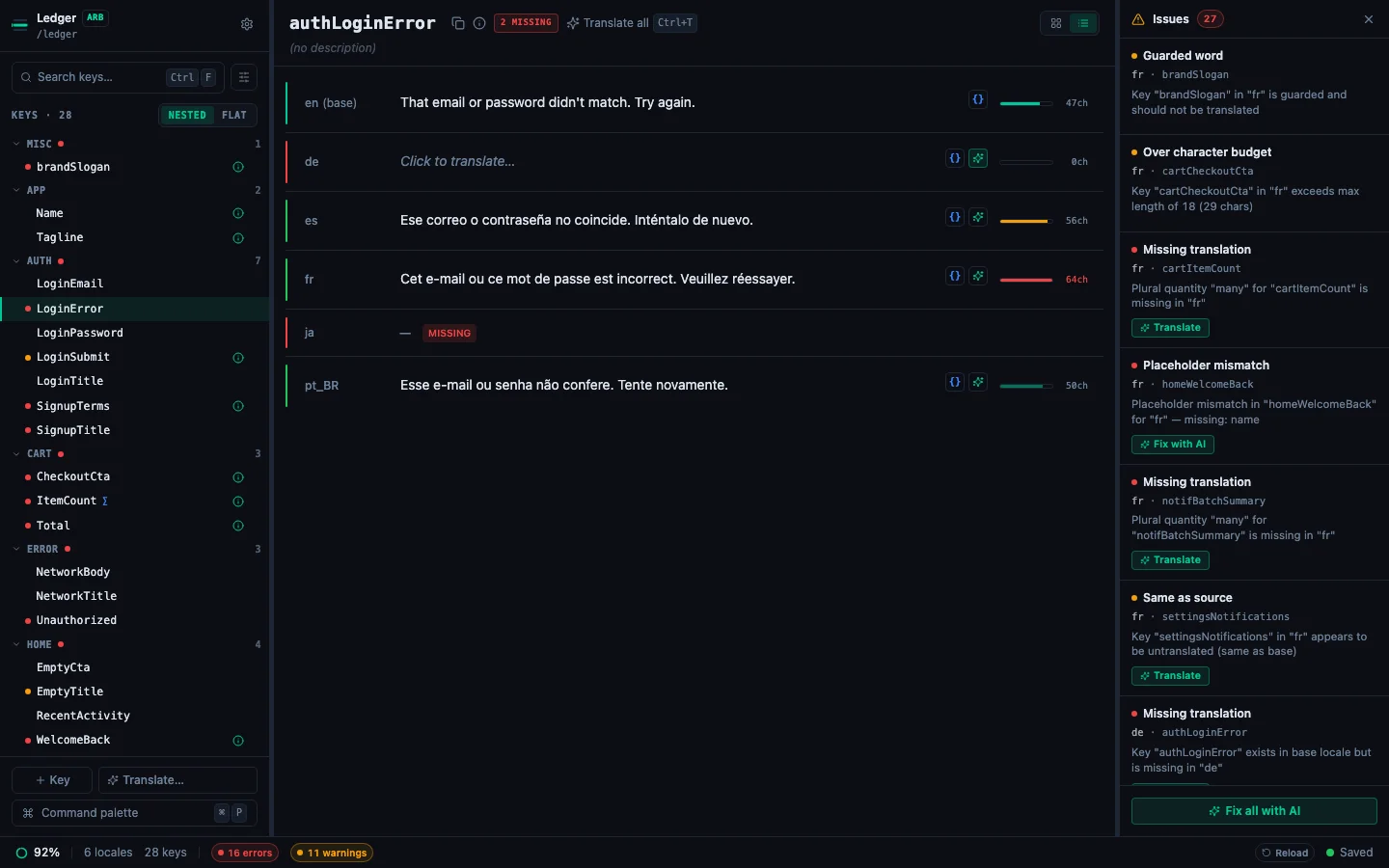
Use the per-cell AI translate button to translate a single key in any locale.
Last updated
Individual key translation lets you translate one cell at a time using your configured AI provider. It's the right tool when you want to re-translate a specific key, check a translation for a critical string, or translate just a few new keys without running a full bulk pass.
Requirements#
You need an AI provider configured in Settings → App → AI Providers before the ✨ button appears. See Set Up AI Translation in 5 Minutes.
How to translate a single key#
-
Select a key, then hover any non-base locale in the detail pane — a row in List mode, a card in Grid mode.
-
A ✨ sparkle button appears on cells that are Missing (no translation) or Same (identical to base locale). These are the most actionable candidates.
-
Click ✨. The cell shows a loading indicator.
-
The translation appears and is saved immediately.
Keyboard shortcut#
With a locale field focused, press ⌘⇧T (Ctrl+Shift+T) to translate, or re-translate, only that field. If the Ukrainian value is focused, only Ukrainian is (re)translated; the key's other locales stay untouched. It's the single-field counterpart to ⌘T, which translates the active key into every non-base locale at once. Unlike the ✨ button, ⌘⇧T works even on cells that already have a translation.
One at a time#
Only one cell can be translating at any given moment. While a translation is in progress, ✨ buttons on other cells are disabled. Wait for the current translation to complete (or fail) before starting another.
Error handling#
"Go to Settings" prompt: your API key is missing, expired, or invalid. Click the prompt to open Settings, or press ⌘, and re-enter your key under App → AI Providers.
Banner with error message: a network or API error occurred. The error message appears in a dismissible banner. Try clicking ✨ again: transient errors usually resolve on retry.
Empty result written: the model returned a response that couldn't be parsed as a translation. This is rare. Try a different model or rephrase the string to avoid edge-case model behavior.
Supported cells#
The ✨ button only appears on:
- Missing cells (key not present in this locale)
- Same cells (translation matches the base locale: likely untranslated)
It does not appear on cells with existing translations: to re-translate those, focus the cell and press ⌘⇧T, clear the cell first, or use the Re-translate all group in the sidebar footer's ✨ Translate… popover.
See every locale side by side
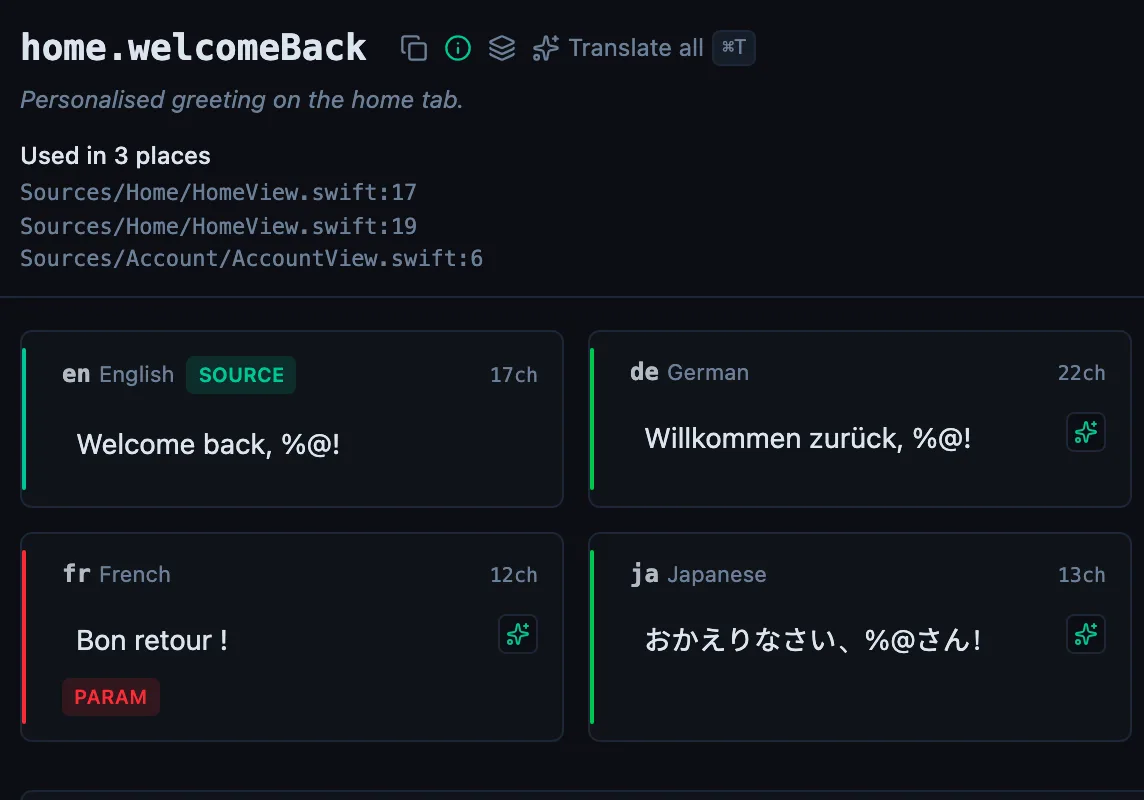
The desktop app flags what is missing or broken on the cell, and saves to your files.
14-day trial, no email