How to Add Key Descriptions and Limits on Any Format
Add a description, character limit and translation rules to a key in an .xcstrings, .strings, Android XML or i18next project, not only ARB.
Last updated
Key metadata used to be a Flutter/ARB feature: only an @key block could hold a description, so
the metadata button appeared on ARB projects and nowhere else. It is now available on all five
formats (.arb, .xcstrings, .strings, Android strings.xml and i18next JSON), and the panel
is the same one everywhere.
Open the Key Metadata panel#
- Select the key you want to annotate.
- Click the ℹ button, in the detail-pane header, or on the key's row in the sidebar.
- Edit any field. Changes save automatically after a short pause; there is no Save button.
- Close with ✕, the Escape key, or by clicking outside the panel.
The ℹ is tinted when the key already has metadata and appears on row hover when it does not, so you can see at a glance which keys are annotated.
What you can set#
Must not change and Not for translation are two different rules and both are settable at once. The first is a warning on a cell you can still edit; the second takes the key out of the workflow entirely.
Where each field is saved#
Whatever your format can hold, it holds. A description written here is the comment in your String
Catalog, the <!-- --> above your Android <string>, the /* … */ above your .strings entry,
visible to anyone on your team who opens the file in Xcode or Android Studio. Not for
translation writes shouldTranslate: false in a String Catalog and translatable="false" in
strings.xml, where Android lint and the rest of your toolchain can see it.
Everything your format has no field for goes to .stringlane/metadata.yaml beside your project.
That file is meant to be committed. See
Where Key Metadata Is Stored for the full per-format table and
the .gitignore rule that silently eats it.
Comments already in your files are imported#
You do not have to retype anything. Open a project and every comment StringLane can attribute to a
key loads as that key's description: the comment an Xcode author wrote in a .xcstrings catalog,
the <!-- --> above a <string>, the /* */ above a .strings entry. Edit one in StringLane and
the comment it came from is rewritten in place.
Two format-specific notes:
- Android
translatable="false"keys are visible. They appear as locked keys, with a tooltip saying where the flag came from. They count toward the key count, but no other language owes them a translation, so they do not hold completion below 100%. Nothing is added to or removed from your files. - A
.stringsfile header is not a description. A/* Localizable.strings */block at the top of the file, andgenstrings' ownNo comment provided by engineer., are both ignored rather than imported onto the first key.
Generate descriptions with AI#
Writing a description for every key by hand is the reason most projects have none.
- One key: click Generate with AI in the panel. The result fills the form for you to read; nothing is saved until you click Apply, and Discard puts your original values back.
- Every key: open the Command Palette (⌘P) and run Generate AI metadata for all keys. It processes keys in batches, shows progress and an ETA, and can be cancelled mid-run, and partial results are kept.
The bulk run skips keys that are already complete and skips keys marked Not for translation entirely: nobody translates them, so a translator-facing description would be paid for and never read. On ARB, "complete" also means every detected placeholder has a type; on the other formats it is the description alone.
Both paths need an AI provider configured. See Set Up AI Translation, or Translate with a Local LLM if you would rather nothing left the machine.
Setting max length across many keys#
To set character limits without opening each key, use Settings → Project → Key Constraints (⌘,). Type a key name, give it a limit, and it applies immediately.
It is the same limit as Max length in the metadata panel: one setting shown in two places. On
ARB it is written to x-max-length in the @key block; on every other format it goes to
.stringlane/metadata.yaml.
If you used Key Constraints before this version, your limits were kept in the project settings file and that copy won over the one on the key, so on a non-ARB project a limit typed into the metadata panel was saved, shown back to you, and then ignored. Opening a project now moves the settings copy onto the key and removes it from the settings file. It happens once, on open, with nothing to do on your side. The one caveat: a project migrated by this version and then opened in an older build will have lost its limits, because the older build only knows how to read the copy that is no longer there.
Related#
- Where Key Metadata Is Stored: the per-format table and the
.stringlane/folder - How to Work with ARB Metadata Annotations: the
@keyblock in detail - How to Configure Guarded Words and Product Context: project-wide terms, as opposed to per-key rules
Frequently asked questions
- Can I add a description to a key in an .xcstrings or Android project?
- Yes. Select the key, click the info button in the detail-pane header or on the sidebar row, and type it into Description. It is saved as the comment on the string in a String Catalog and as the XML comment above the key in strings.xml, so the rest of your team sees it in the source file.
- How do I mark a string as not for translation?
- Open the key metadata panel and tick Not for translation. The key locks in every locale straight away and drops out of the Issues panel and every AI action. It still counts toward your key count and completion percentage, so a locked key with empty locales keeps the project short of 100%. On a String Catalog it writes shouldTranslate: false, on Android it writes translatable="false", and on the other formats it is recorded in .stringlane/metadata.yaml.
- What is the difference between Must not change and Not for translation?
- Must not change warns you when a translation differs from the base value, which is useful for brand names and legal text, but the cell stays editable and AI will still write into it. Not for translation removes the key from the workflow entirely: locked cells, no issues, no AI. Both can be set on the same key.
- Do comments already in my locale files show up in StringLane?
- Yes, on open, with nothing to configure. The comment on a String Catalog string, the XML comment above an Android key, and the block comment above a .strings entry all load as that key's description. Editing the description rewrites the comment it came from rather than storing a second copy.
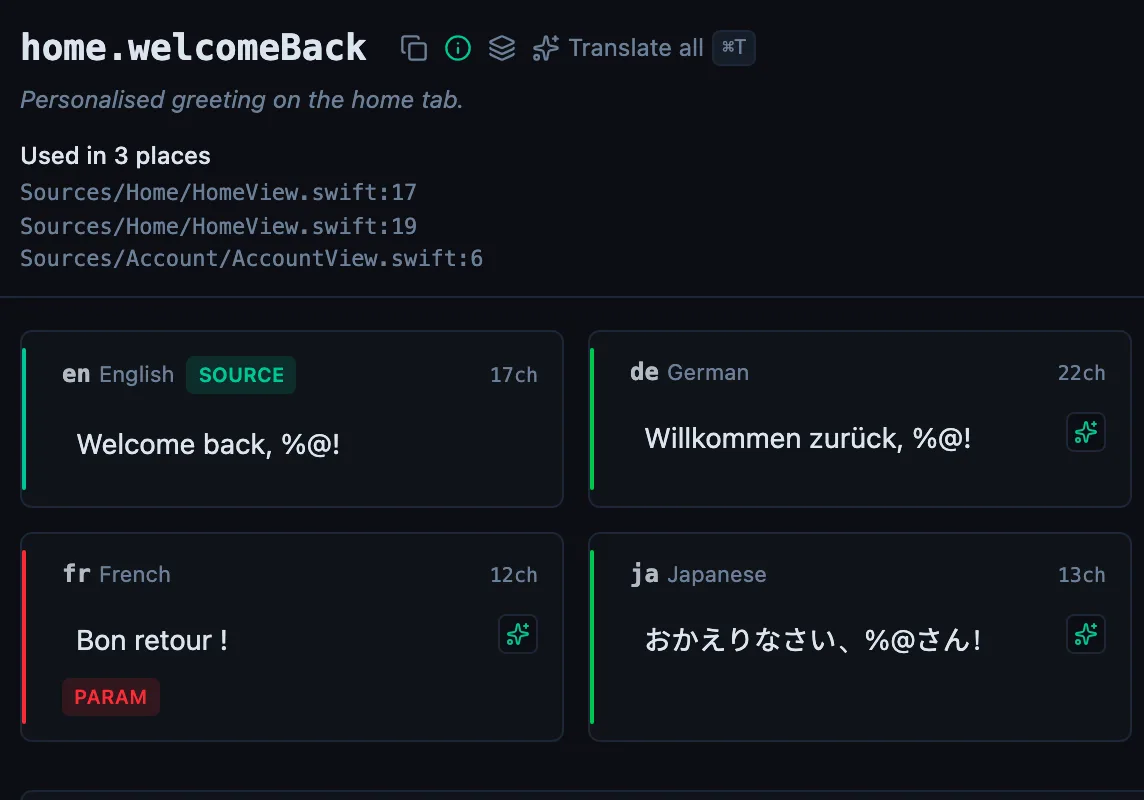
See every locale side by side
The desktop app flags what is missing or broken on the cell, and saves to your files.
14-day trial, no email