How to Work with ARB Metadata Annotations
What @description, x-max-length, x-guarded and x-no-translate mean in ARB files, and how StringLane reads and uses them.
Last updated
ARB files support metadata annotations via @key objects: JSON objects whose names start with @ and correspond to a translation key. StringLane reads these annotations and uses them to validate translations and improve AI output.
Not sure what ARB is? See What Is an ARB File? for the format basics before diving into metadata.
Anatomy of an ARB annotation#
{
  "greetingMessage": "Hello, {name}!",
  "@greetingMessage": {
    "description": "Greeting shown at the top of the home screen",
    "x-max-length": 50,
    "placeholders": {
      "name": { "type": "String" }
    }
  }
}
StringLane reads the @greetingMessage object alongside greetingMessage. The annotation does not need to exist, StringLane works fine without it, but when present, it unlocks more accurate validation and better AI translations.
Supported annotation fields#
description#
A human-readable explanation of what the string is for: where it appears in the UI, any context that affects tone or length.
How StringLane uses it:
- Passed verbatim to the AI translation prompt as context for that specific key
- Shown in the key detail panel in StringLane (List View)
Example:
"@submitButton": {
  "description": "Button label on the payment confirmation screen. Must be short: 2 words max."
}x-max-length#
An integer maximum character count for the translation. Useful for UI elements with fixed display space: button labels, tab titles, notification titles.
How StringLane uses it:
- Translations exceeding this length show a Length badge (yellow)
- Also passed to the AI prompt: the model is asked to respect the limit
Example:
"@doneButton": {
  "description": "Button in the navigation bar",
  "x-max-length": 10
}x-guarded#
A boolean flag (true) marking this key as containing a brand name or guarded term that must never be translated.
How StringLane uses it:
- If a target locale's value differs from the base locale's value for a guarded key, a Guarded badge (yellow) appears
- The guarded check runs before the "untranslated" check: a guarded key with the same value as base is correct behavior, not a translation failure
Example:
"appName": "StringLane",
"@appName": {
  "x-guarded": true
}x-no-translate#
A boolean flag (true) marking this key as one nobody translates: an API path, a debug label, an identifier that happens to live in the locale file.
How StringLane uses it:
- The key's cells are locked in every locale, with a tooltip saying the flag was set in StringLane
- The key drops out of the Issues panel and out of every AI action, including bulk translate and bulk metadata generation
- It is not counted as missing in any other language, so a locked key with empty locales does not hold the project below 100%. The base language still counts its own cell
It is a different rule from x-guarded, and both can be set on one key. x-guarded warns about a cell you can still edit; x-no-translate takes the key out of the workflow.
Example:
"apiBaseUrl": "https://api.example.com",
"@apiBaseUrl": {
  "x-no-translate": true
}
Editing annotations in StringLane#
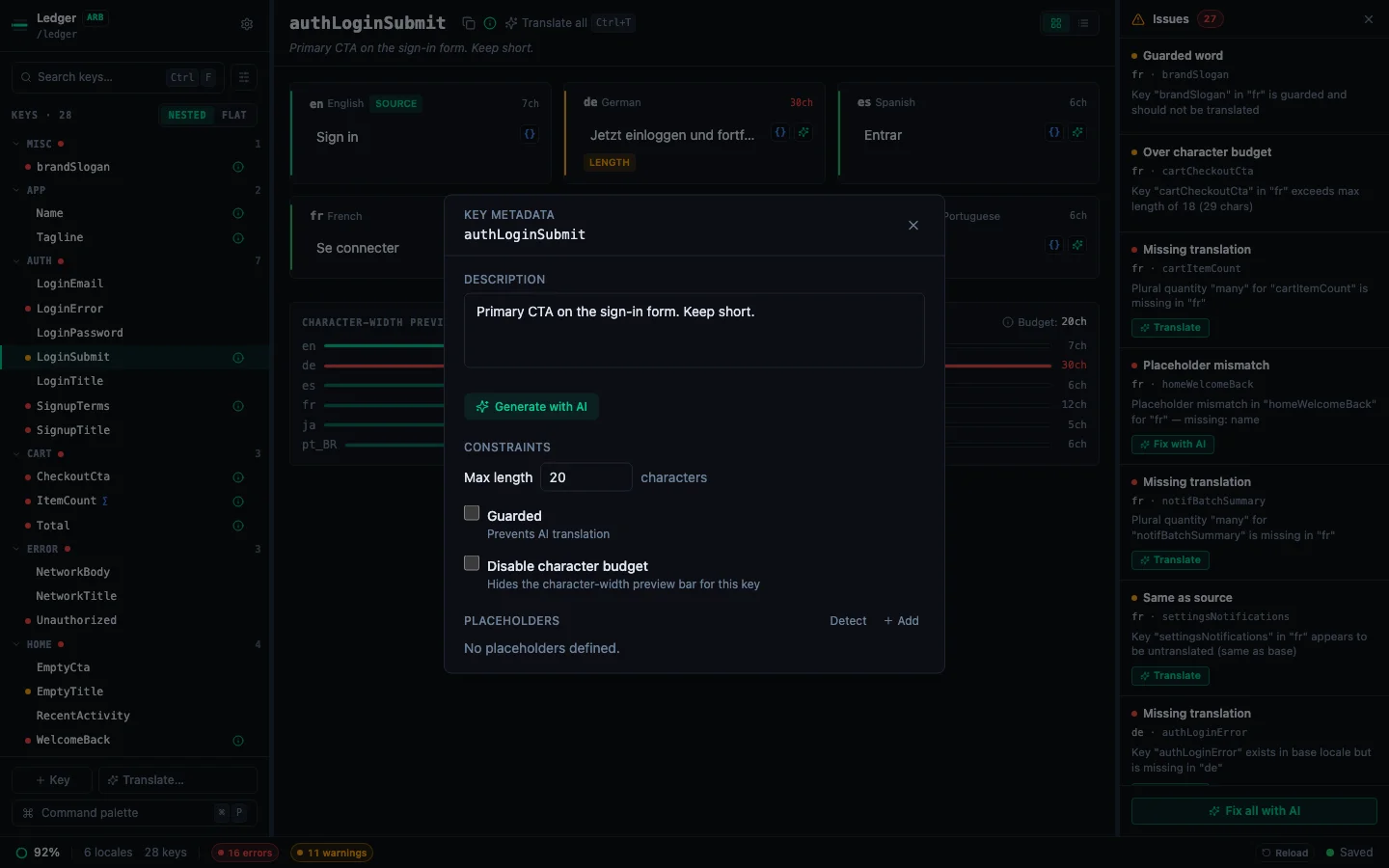
You do not have to hand-edit JSON. StringLane has a metadata editor for every key.
To open it: select a key, then click the ℹ button, in the detail-pane header, or on the key's row in the sidebar. The button is tinted when the key already has metadata, so you can see at a glance which keys are annotated.
The Key Metadata panel edits every field on this page:
Changes are written back to the base-locale ARB file on save, the same way a translation edit is. Fields you leave empty are removed rather than written as null, so the file stays clean.
x-disabled-budget turns off the character-width preview for one key, and x-dynamic-key marks a
key whose name your code builds at runtime so it is never reported as unused. Both are StringLane's
own extensions, and both live in the @key block because it is an open JSON object: on the other
four formats they go to .stringlane/metadata.yaml instead. See
Find keys your code no longer uses for what the second one changes.
Detect placeholders scans the base value and suggests any {placeholder} that has no entry yet. Click one to add it, or Add all.
Generate metadata with AI#
Writing a description for every key by hand is the reason most ARB files have none.
- One key: click Generate with AI in the Key Metadata sheet. The result fills the form for you to read. Nothing is written until you click Apply, and Discard puts your original values back.
- Every key: open the Command Palette (⌘P) and run Generate AI metadata for all keys. It processes keys in batches, shows progress and an ETA, and can be cancelled mid-run.
The bulk run skips keys that are already complete (a description plus a typed entry for every placeholder detected in the base value), so re-running it only fills real gaps. Requires an AI provider; see Set Up AI Translation.
Setting max-length without opening each key#
To set character limits across many keys at once, use Settings → Project → Key Constraints (⌘,). Type a key name, give it a limit, and it applies immediately. On an ARB project it is written to x-max-length, so it travels with the file.
It is the same limit as Max length in the metadata panel: one setting shown in two places. Earlier versions kept a second copy in the project settings file that won over the one on the key; opening a project now folds that copy onto the key and removes it from the settings file, once, on open.
The @key block is ARB-only; the metadata panel is not#
Annotations are a Flutter/Dart convention: flutter gen-l10n supports them and the intl package recognises them. StringLane extends them with x-max-length, x-guarded and x-no-translate for validation. No other format has an equivalent block, so everything on this page is specific to .arb files.
The panel that edits them is not. Description, max length, Must not change and Not for translation are settable on .xcstrings, .strings, Android XML and i18next JSON too. Each format keeps whatever it has a field for, and StringLane keeps the rest in .stringlane/metadata.yaml beside your locale files. See How to Add Key Descriptions and Limits on Any Format and Where Key Metadata Is Stored.
Only the placeholder table stays ARB-only. Its types are Dart type names (String, int, DateTime), which have no meaning for %@ or {{var}}.
Guarded terms also work project-wide, on every format, via Guarded Words: a list of terms rather than a flag on one key.
Editing the files by hand#
You can still do it. Edit the ARB in any text editor and StringLane picks the changes up the next time you open the project, or immediately, via Reload from Disk (⌘R) if it is already open.
StringLane preserves annotations it does not recognise. The parser keeps each @key object whole and writes it back unchanged, so custom x- fields your own tooling depends on survive a save. Your original key order is preserved too: saving does not reshuffle the file, which keeps diffs readable.
See every locale side by side
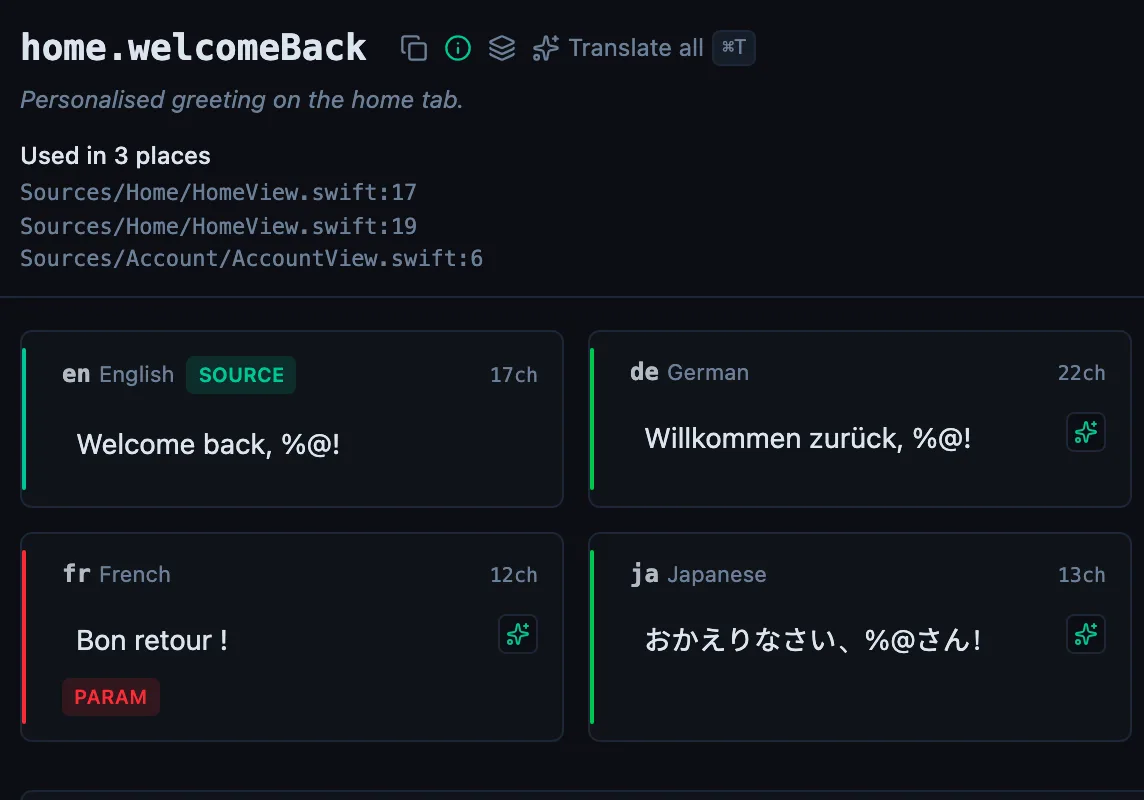
The desktop app flags what is missing or broken on the cell, and saves to your files.
14-day trial, no email