How to Use the List View Editor
Navigate the key sidebar and detail pane: switch between Grid and List layouts, track validation at a glance, and edit every locale for one key in one place.
Last updated
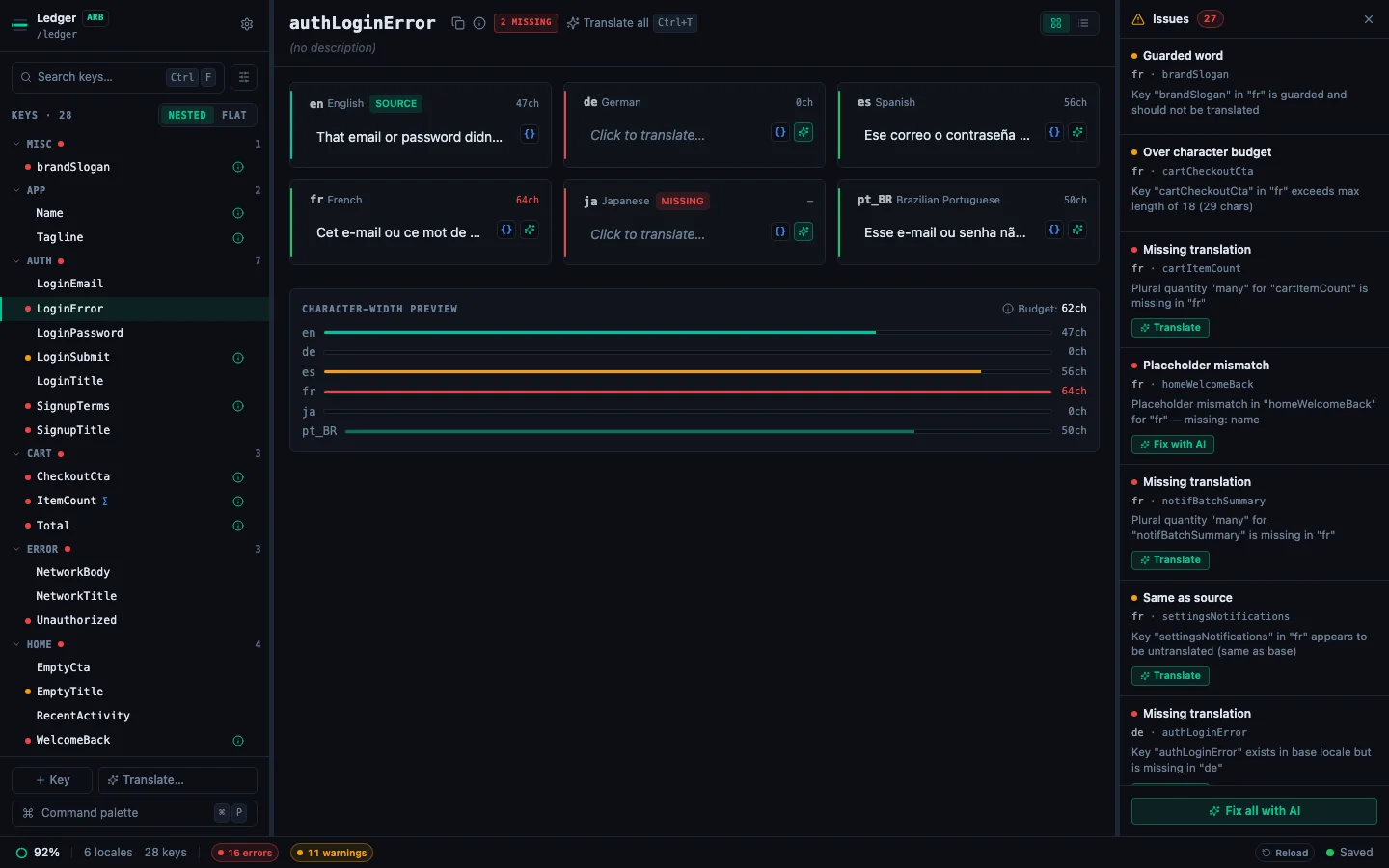
StringLane's single editor surface is a sidebar of keys on the left and a per-key detail pane on the right. Select a key → every locale's value appears in the detail pane. This replaces the old split Table/List view with one focused layout.
Layout#
- Sidebar (280px, left): namespace-grouped key tree, search, filter popover, command-palette launcher at the bottom. Stays visible while you work.
- Detail pane (main area): header (key name + chips + Grid/List toggle) and a locale layout showing every locale side-by-side.
- Issues panel (right rail or bottom drawer): collapsible; auto-opens when the project has validation issues.
- Status bar (bottom): completion ring, error/warning chips, "Saved · Ns ago" indicator.

Switching between Grid and List layouts#
The detail header has a Grid / List segmented toggle. Your choice persists per-project.
- Grid: locale cards in a 3-column grid. Best for short strings and projects with 3-6 locales.
- List: locale rows stacked with a wider value field. Best for longer strings, or when you want char-width bars inline per locale.
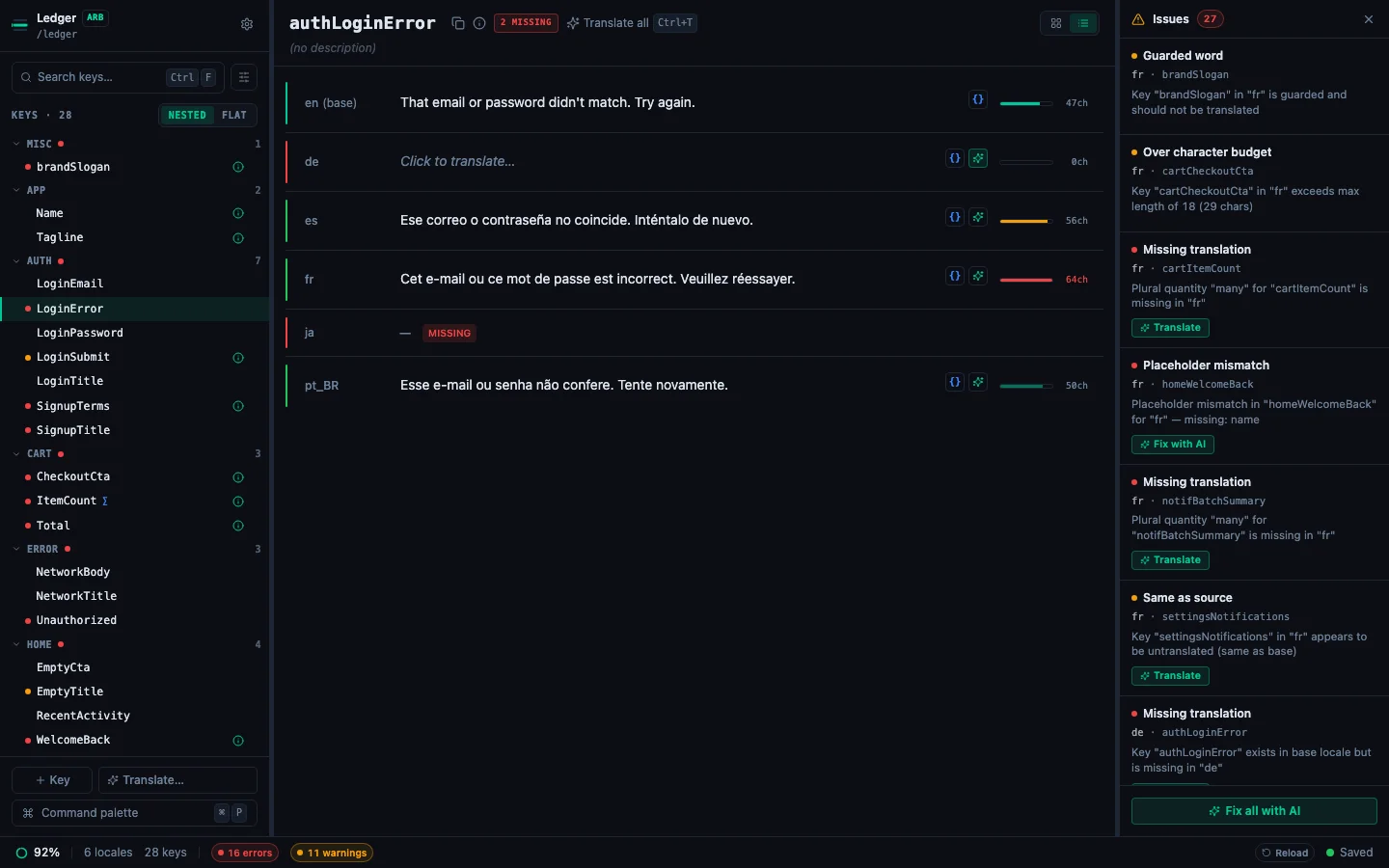
Default is Grid for ≤6 locales, List otherwise. Flip it any time.
Navigating the key sidebar#
Keys are grouped by their first namespace segment (before . or _). So settings.theme, settings.density, and settings.fontSize all live under a collapsible settings group.
- ⌘F (or click the search input): focus the sidebar search. Type to filter across all namespaces.
- ↑ / ↓: move between visible keys.
- ⌘→ / ⌘←: next / previous key in the filtered list.
- Nested / Flat toggle: segmented control under the search input switches between namespace-grouped and flat alphabetical views.
- Click the filter icon (next to search) to open the filter popover: pick locale, toggle Issues-only, clear all.
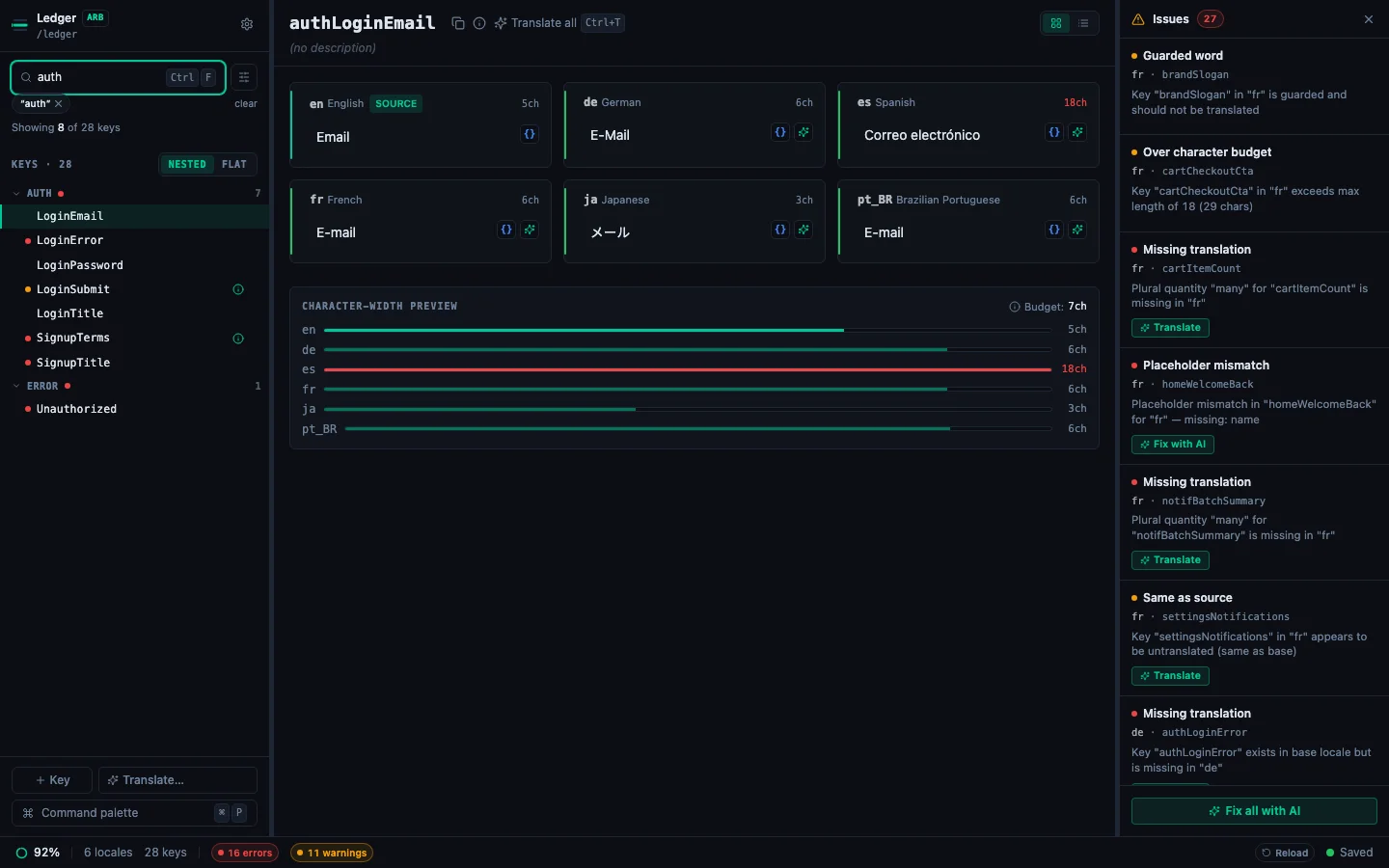
When a filter is active, the sidebar shows chips of each filter and a "Showing N of M keys" count.
Editing a cell#
Click a locale's value in the detail pane → an inline input appears. The same keyboard shortcuts apply as always:
Edits auto-save to the source file: no export step.
Reading the validation rail#
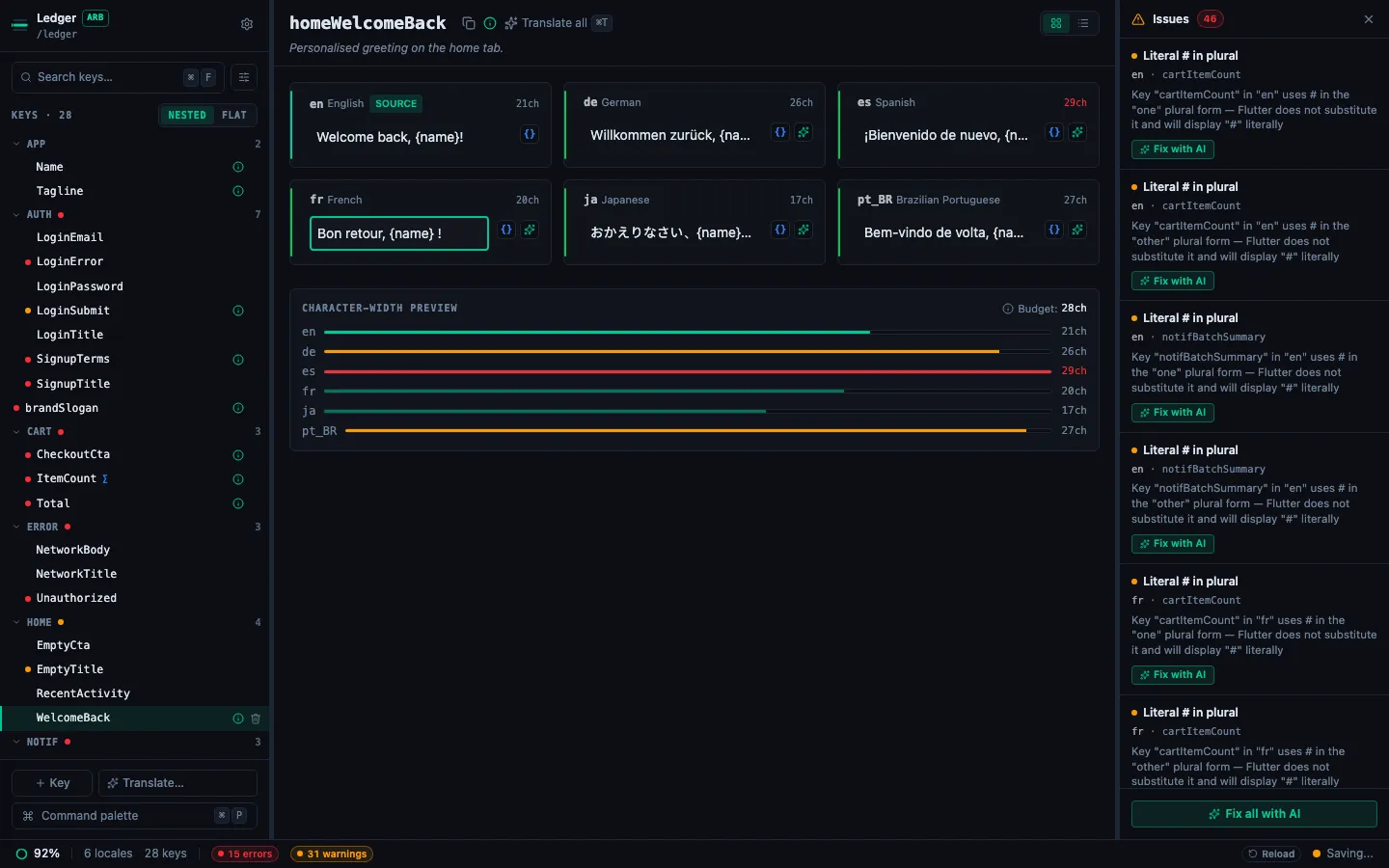
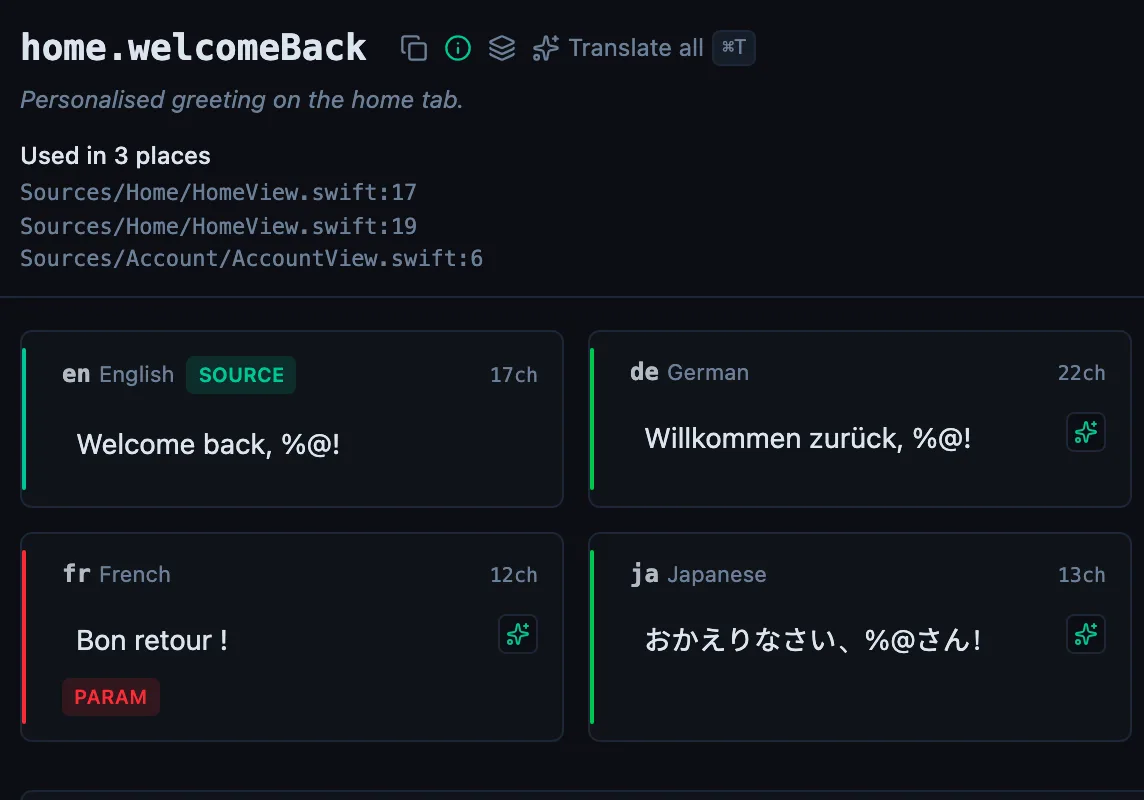
Every locale row has a thin 2px colored rail on its left edge:
- Mint: source / base locale.
- Green: translated, clean.
- Amber, warning (placeholder drift, approaching length budget).
- Red: error (missing required placeholder, over length budget, ICU syntax error).
Hover the rail for a tooltip with the first issue message. When you enter edit mode on a problematic cell, a loud inline badge also appears for explicit feedback. See the validation badges guide for what each code means.
Char-width preview#
Each list-mode row has a mini bar showing current ch count vs. the budget. Over-budget bars turn red. Budget comes from the key's x-max-length metadata if set; otherwise a heuristic based on the base value's length. In Grid mode the bars live in a summary panel at the bottom of the detail pane so you can compare locales side by side.
Plural keys#
If the key is a plural (has an @@plural marker or is already a plural map), the detail pane expands into one panel per locale with per-quantity rows (zero, one, few, many, other). Each quantity gets its own rail, char-width bar, and {} ICU editor button.
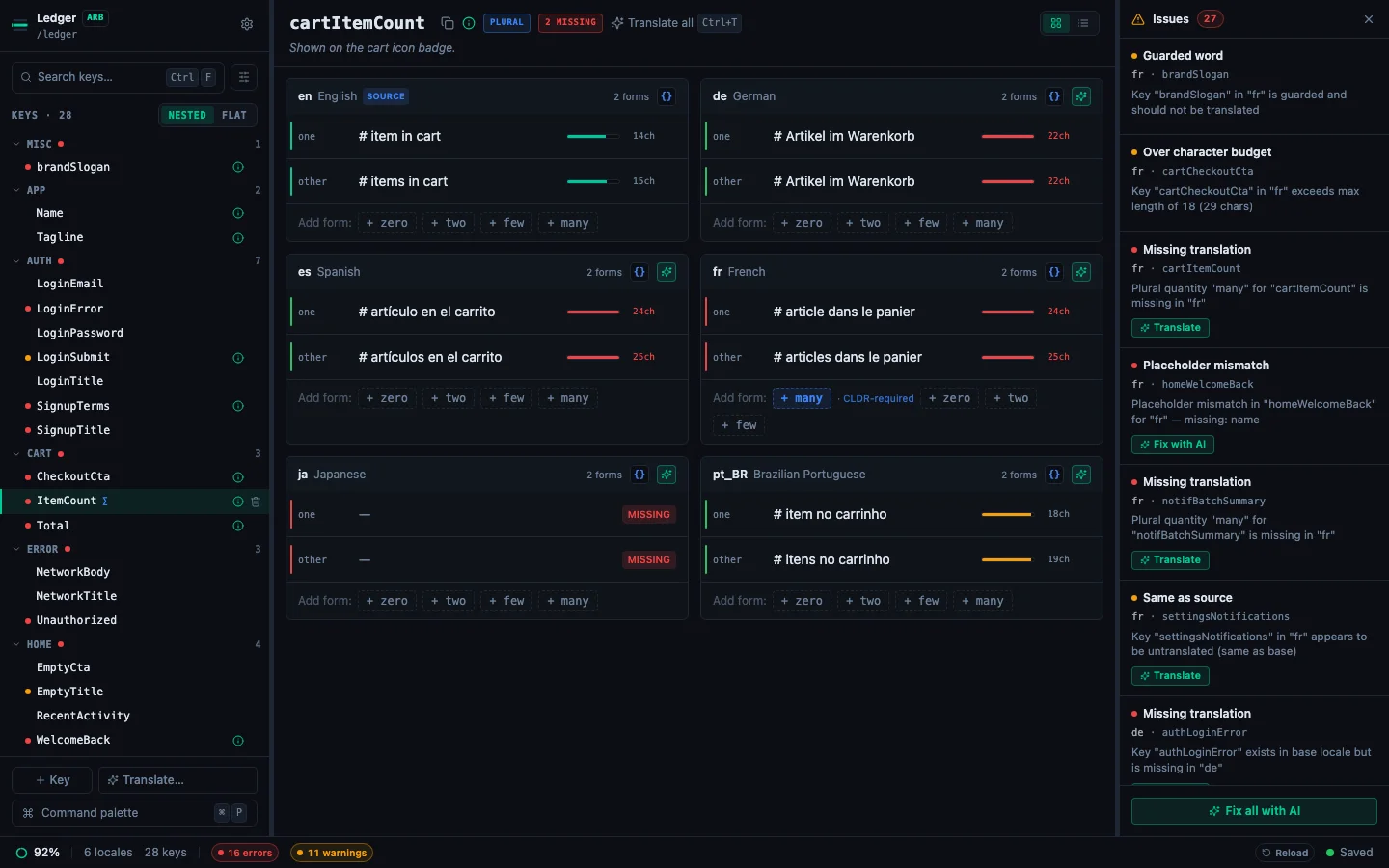
When a locale is missing a plural category that its CLDR rules require (e.g. few and many for Polish), the Add form: chips at the bottom highlight those categories in blue. Optional categories stay muted.
Android regional overrides#
An Android override folder, such as values-fr-rCA/, holds only the strings that differ from its parent folder, and Android shows the parent's string for the rest. In the editor, a string the override does not define is an inherited cell:
- What it shows. An empty box, with a small badge naming the parent locale and the parent's text in italics under it. It has no Missing badge, and it is not counted as missing anywhere: not in the Issues panel, the completion figures or
stringlane check. - Create an override. Click the cell and type. The string is added to the override folder.
- Remove an override. Clear the cell, or press Escape in an inherited cell you typed into. The string is removed from the override folder, and the cell shows the parent's text again.
- Empty strings. The editor does not save an empty string into an override. An empty string already in the folder still shows as an empty cell, and it is still reported, because Android shows it as blank text.
- Plural and select keys show their quantity rows as usual, not the inherited note.
The parent must be the same language in the same writing script: values-zh-rTW/ does not inherit from values-zh/, so it owes every string.
Stale and unconfirmed markers#
With source stamps on, a cell whose base text changed since its translation was confirmed gets an amber Stale badge, and a translation nobody confirmed gets Unconfirmed. The note under a stale cell shows the old base text (Was) and the new one (Now), and a key header shows an amber "N to check" chip when it has marked cells. See How to Find Translations That Went Stale.
AI translate buttons#
Each non-base locale cell has a ✨ button next to its value. Click it to translate that one cell via your configured AI provider. A spinner replaces the button while it runs; the result auto-saves. Or focus the cell and press ⌘⇧T to translate, or re-translate, only that one field.
For batch translation across many cells, open the command palette (⌘P) and pick Translate all missing with AI: see Translate all missing.
Keyboard shortcuts summary#
Every shortcut in this list can be rebound from Settings → Keybindings: see Customize keybindings.
See every locale side by side
The desktop app flags what is missing or broken on the cell, and saves to your files.
14-day trial, no email