How to Find Translations That Went Stale
Turn on source stamps and StringLane marks every translation whose source text changed since it was confirmed, so you can check those before your next release.
Last updated
A translation goes stale when someone edits the source text it was made from and nobody revisits it. With source stamps on, StringLane records which source text each translation was confirmed against, and marks every translation whose source changed since, so you check them before you ship instead of finding them in a screenshot.
Source stamps are off until you turn them on, per project. The same stamps drive stringlane check on the command line, so the desktop app and your CI agree about what is stale. For the terminal and CI side, see Inspect and check a project.
Turn on source stamps#
- Open Settings (⌘,) and choose Project → General.
- Under Source stamps, turn on Track stale translations. StringLane saves your pending edits first.
- The Turn on source stamps? dialog says how many translations, in how many locales, get a stamp now. StringLane treats each of them as current against today's source text, because it cannot know whether they were current before today. If you doubt some of them, check those first.
- Click Turn on.
- StringLane writes
.stringlane/source-stamps.json, then addssourceStamps: truetostringlane.yaml. The markers show at once; you do not need to reload. - Commit both files with your locale files. A teammate, or a CI run of
stringlane check, needs both: with the flag on and no stamps file, the check cannot run.
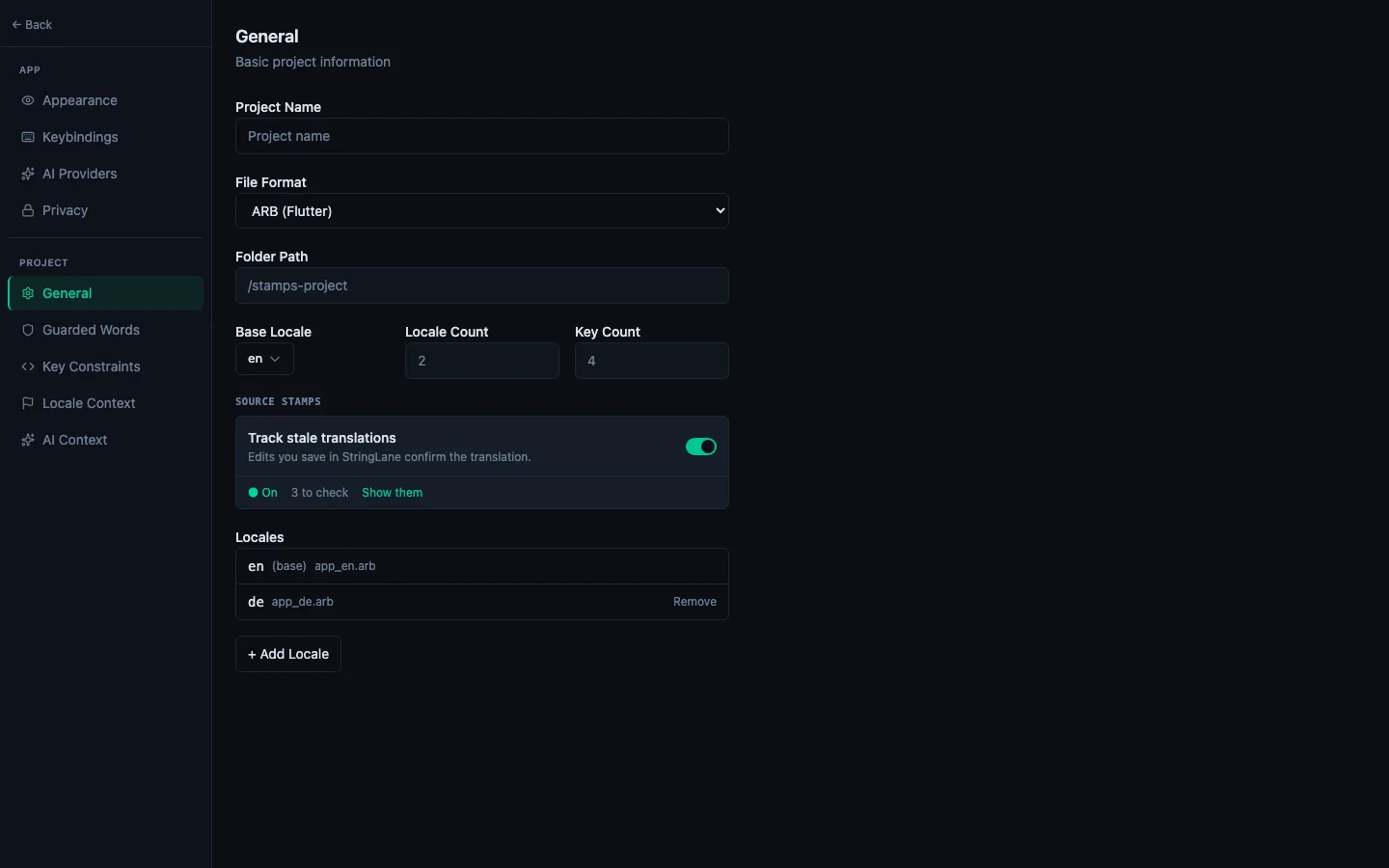
Turning stamps on never stamps an empty cell, and a project needs a stringlane.yaml before the switch can write the flag. If it has none, run stringlane init or create the file. See sourceStamps in the stringlane.yaml reference.
What Stale and Unconfirmed mean#
Both are amber warnings on the cell, with a note under it:
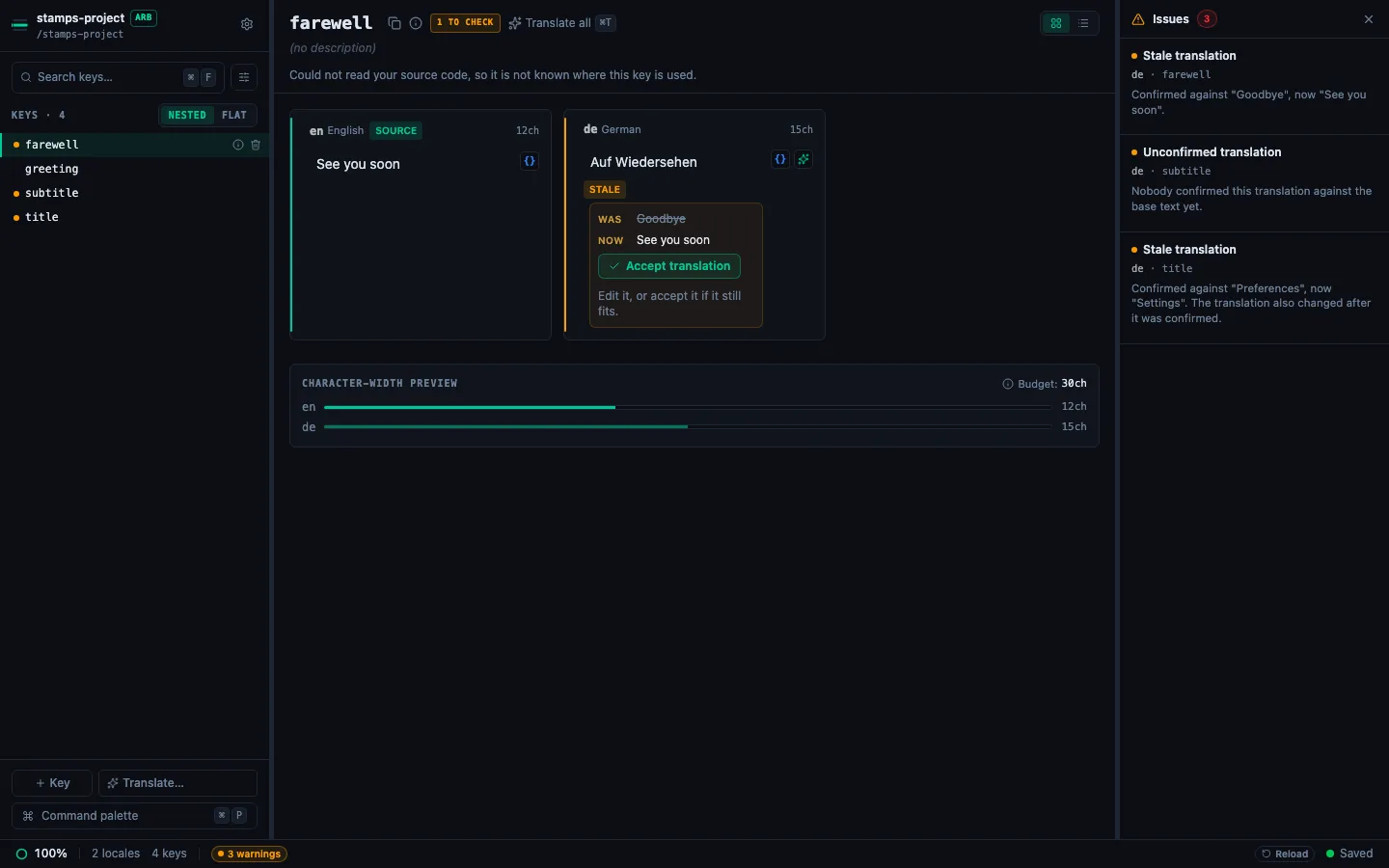
A plural key gets a badge per form, so you can see which form is stale. A select key gets one badge for the whole message per locale.
Confirm a translation that still fits#
A stamp is confirmed in one of two ways:
- Edit it. Type a change and let auto-save write it. That save confirms the translation against the source text you saw. You take no separate step.
- Accept it as it stands. Click Accept translation in the note under the cell. The marker goes away and the translation's text does not change. For an ordinary cell, Accept writes only the stamps file.
What does not confirm a translation:
- an edit made outside StringLane, in another editor, a script or a
git pull; - an edit to the source text itself, which makes that key's translations stale instead;
- a repair from Fix param, the wrench, or Fix with AI, which keeps the cell stale or current as it was.
A missing cell filled by ✨ Auto-translate, Fix all with AI or a translate dialog is confirmed, because you asked for that translation.
Find every marked translation#
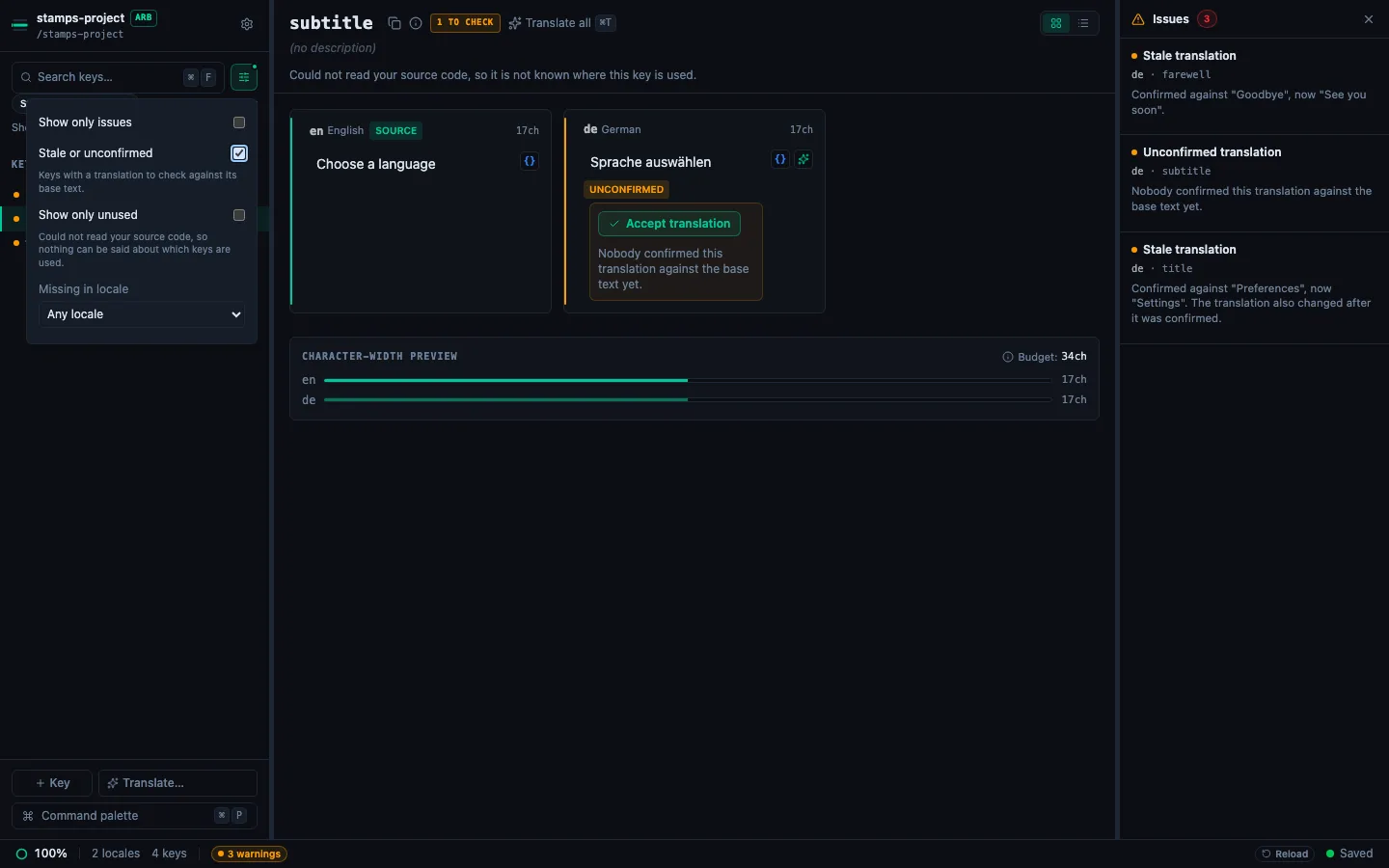
- The sidebar filter. Open the filter popover next to the search box and tick Stale or unconfirmed to keep only the keys that have a marked cell. It combines with the other filters. See How to Search and Filter Translations.
- The key header. A key with marked cells shows an amber "N to check" chip.
- The sidebar dot. A key with a marked cell gets the amber warning dot.
- The Issues panel. Each marked cell is a row titled "Stale translation" or "Unconfirmed translation". A plural form is written as
key[quantity], such asitems[one]. These rows have no fix button: the fix is your judgement. - The setting itself. With stamps on, Settings → Project → General shows N to check and a Show them link that switches to the list layout and applies the filter.
Xcode String Catalogs#
When Xcode marks a unit needs_review and its source text did not change, StringLane shows it as Stale with the note "Xcode marks this translation for review. Accept sets it to translated." There is no Was line, because there is nothing to compare. Accept translation on such a unit also sets it to translated in the .xcstrings file, in the same save.
When the stamps file cannot be used#
If stringlane.yaml turns stamps on but .stringlane/source-stamps.json is missing or unreadable, an amber banner says Source stamps are paused, names the file and says what to do. The markers and the filter are hidden meanwhile, and your edits still save to the locale files. An amber Stamps paused button in the status bar brings the banner back after you close it.
- The file does not exist, for example because a teammate did not commit it: if a teammate has it, pull it. Otherwise click Create stamps file, read the Create the stamps file? dialog, and click Create. StringLane marks today's translations as confirmed against today's source text.
- It is not valid JSON: restore it from version control, then reload the project.
- It, or the
.stringlanefolder, is a symbolic link, or a folder where a file should be: replace it with a plain file or folder, then reload.
The file watcher covers locale files only. After you run stringlane accept or stringlane update in a terminal, reload the project to see the cells they confirmed.
Turn it off#
Turn off Track stale translations. StringLane saves your pending edits and accepts first, then writes sourceStamps: false to stringlane.yaml. The markers go away, and .stringlane/source-stamps.json stays on disk, so turning stamps on again keeps every stamp it holds.
Related#
- How to Read Validation Badges: every badge a cell can show
- How to Use the Issues Panel: the project-wide list of findings
- Inspect and check a project: the same stamps from the terminal and in CI
stringlane.yamlreference: thesourceStampskey
Frequently asked questions
- How do I find translations that are out of date after I changed the source text?
- Turn on source stamps in the StringLane desktop app under Settings → Project → General → Source stamps, with the Track stale translations switch. StringLane then records which source text each translation was confirmed against, in .stringlane/source-stamps.json, and marks a translation Stale when its source text changes. The Stale or unconfirmed filter in the sidebar lists every marked key.
- What does Unconfirmed mean in StringLane?
- An Unconfirmed translation is one nobody has confirmed against the current source text, or one that changed after it was confirmed, for example in another editor or a git pull. Saving an edit to it in the StringLane desktop app confirms it, and so does the Accept translation button under the cell.
- Does turning on source stamps change my locale files?
- No. It writes two things: a new .stringlane/source-stamps.json file, and the line sourceStamps: true in stringlane.yaml. Commit both. Your locale files change only when you edit a translation, or when you accept a unit Xcode marks for review in a String Catalog.
See every locale side by side
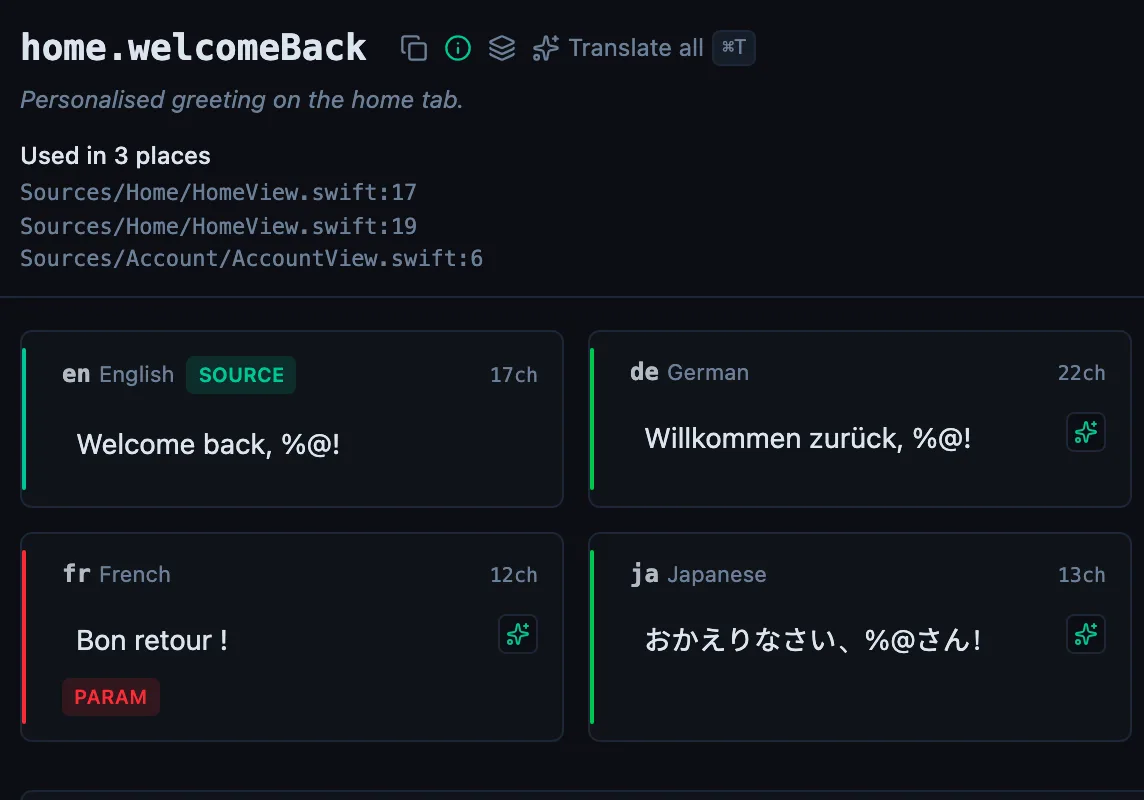
The desktop app flags what is missing or broken on the cell, and saves to your files.
14-day trial, no email